To offer better efficiency and ease of use, Awin has partnered with Stape to develop and maintain a server-to-server Awin integration available through Google Tag Manager.
Stape offers an integration service for this portion of our tracking at a cost but you’re welcome to complete this process manually.
This method of integrating S2S requires the use of Google Cloud.
Important
For best results, we recommend that this tracking method be set up by personnel experienced in web development.
Cloud platform provisioning
If you’ve already set up a server-side container through GTM’s automatic provisioning, please make sure you’re using a custom domain instead of Google’s default server container URL.
You can verify this by navigating to Admin > Container Settings and checking the Server Container URL. This URL must be a subdomain of your website.
Note
If you’ve already completed this step separately, skip ahead to steps relating to GTM configuration.
.jpg)
Use this option to allow Google Cloud Platform to provision your tagging server. This option will automatically create two services in Cloud Run, follow the steps outlined below to complete the implementation.
Sign into your Google Cloud Console or start your first cloud project.
Navigate to Cloud Run. You can find this by searching.
You should already have some services listed as below. If not, please create yours.
.jpg)
The next step is to map your custom domain to your service, to do this click on Domain mappings and click on Add mapping.
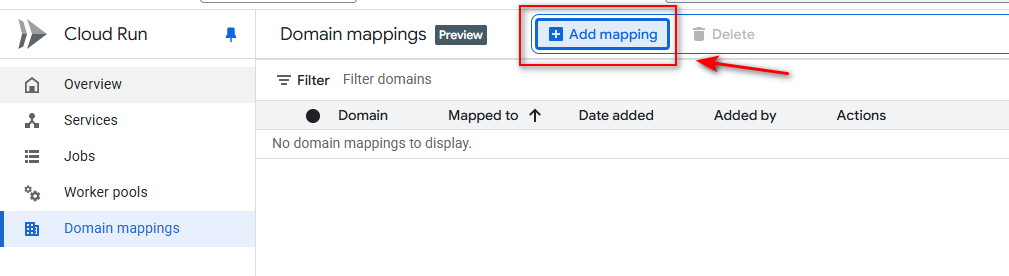
On the next pop-up you need to specify the following:
The service that you want map you subdomain to, this is usually the “server-side-tagging” one.
The domain of your website: If your website hasn’t been verified via the GCP Search Console yet, then click on Verify new domain, this will prompt you with a Verify in Search Console option that will take you to the GCP Search Console. For more information on how to verify your domain via the Search Console, please visit this page.
The subdomain to be mapped to the service: Note that this must be on the same domain as your website.
Once done, you mapping is created,and is waiting for certificate provisioning. You must configure your DNS records for certificate issuance to begin.

To enabled Cloud Run to issue an SSL certificate, you must configure your DNS records for this subdomain, so that traffic is routed via Google’s Global Front End (GFE) load balancer. To do this, log into your domain registrar, go to DNS settings, and add a CNAME for your subdomain, pointing to
ghs.googlehosted.com.

You should see a green check mark once the certificate was issued. Please note that it may take up to 24 h for DNS to propagate and certificate to be issued.

(replace the example url with your own custom subdomain)
Server-side GTM configuration
Server container URL
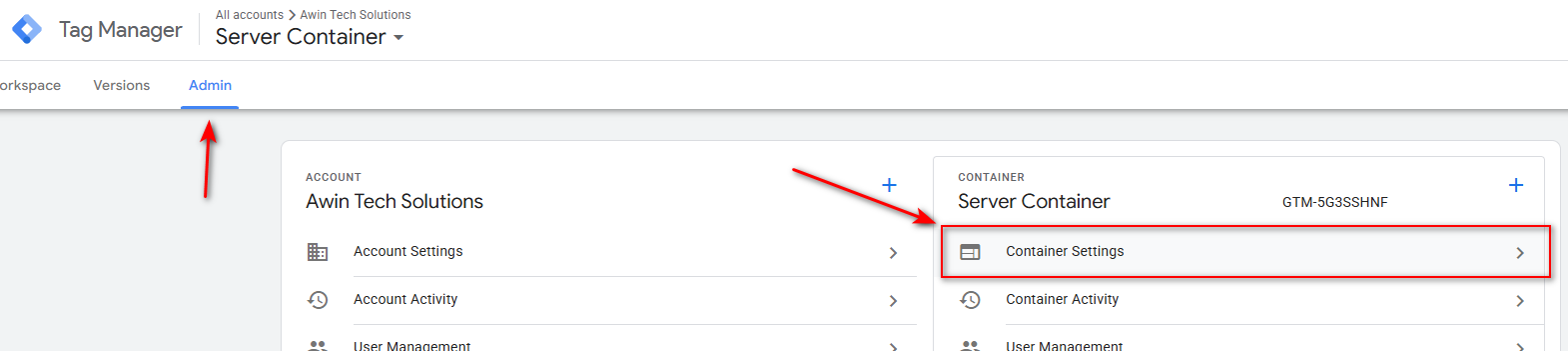
To enable your server container to receive requests via your custom subdomain, you must specify the subdomain URL in Container Settings. To do this, open Google Tag Manager and navigate to your server container, then click on Admin, then Container Settings, as shown below.
In Container Settings, paste the URL of your subdomain and click Save.
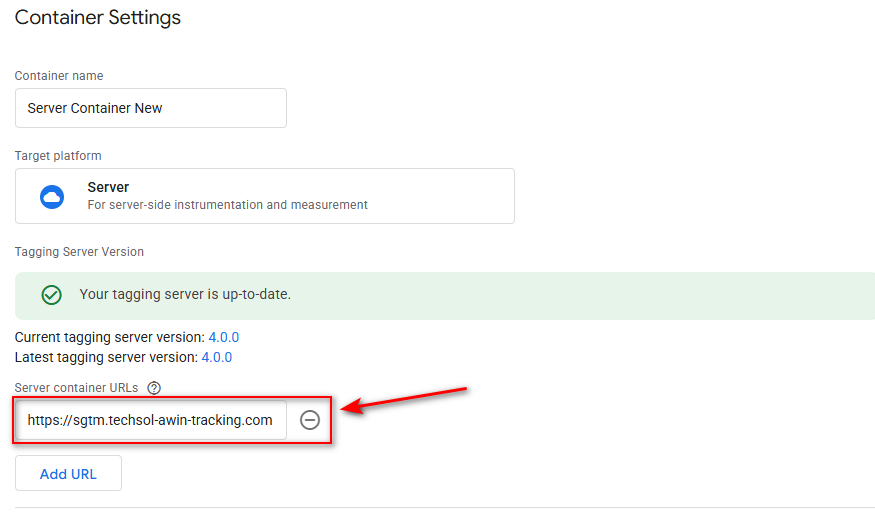
(replace the example url with your own custom subdomain)
Setting up Awin tracking
For our tracking to work, you’ll need to set up tags in two areas:
Your client-side GTM container
Your server-side GTM container
These two containers are responsible for their labeled environments. It’s important that you are aware of which container you’re making changes to.
Note
If you are having trouble with completing this portion of the integration, please see our section on a Stape supported integration.
Client-side GTM configuration
Stape Data Tag configuration
Use the Stape Data Tag to send the e-commerce events and event data from the web container to the server container.
The Data Tag template can be imported from the Template Gallery. To do this, in your GTM web container, go to Tags, click on Tag Configuration, then Discover more tag types in the Community Template Gallery, then search for the Stape Data Tag template, and add it to your workspace.

The Awin server-side tracking requires two events, page_view and purchase, and you must configure one Data Tag for each event.
Page View event configuration
Configure the tag by selecting the Standard Page View event name, then specify the server container URL, ensure that the Send common data setting is ticked, and add an All Pages trigger. Below is an example of how the tag should look like when configured correctly.
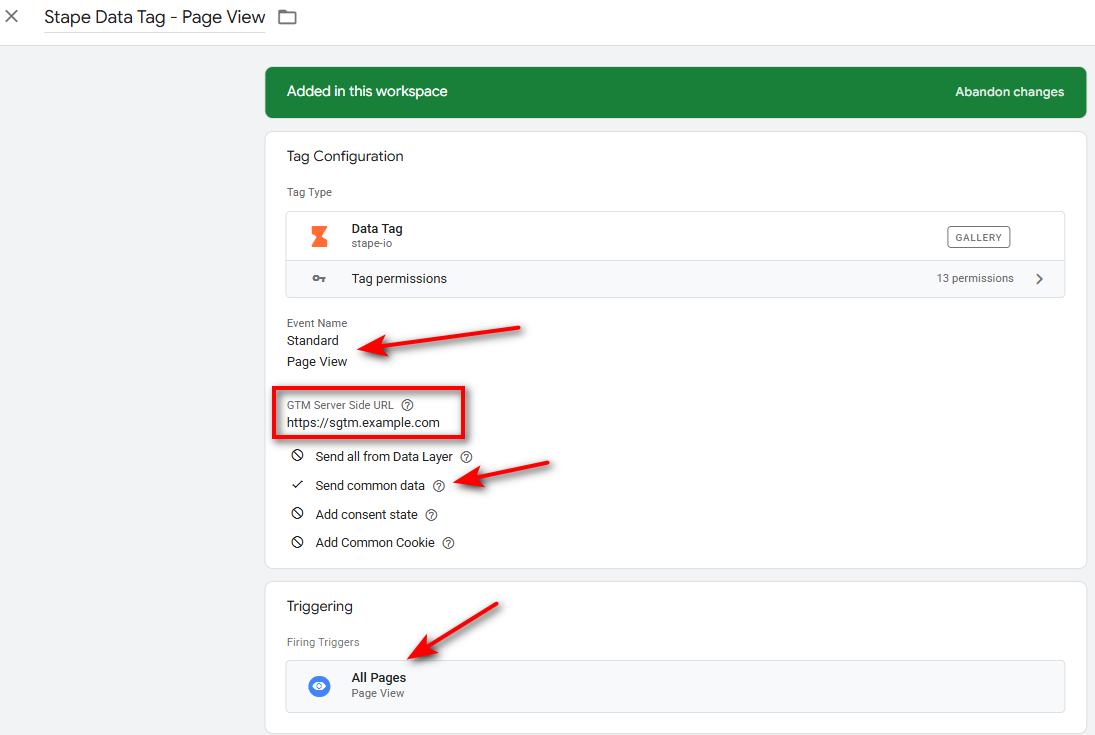
Stape-Data-Tag: Page-View
Purchase event configuration
Default configuration
For the purchase event, use the following configuration:
Event Names: Standard > Purchase.
Add your server container URL.
Enable Send all from Data Layer.
Enable Send common data.
Add a purchase event trigger.
Below is an example of how the tag should look like when configured correctly.
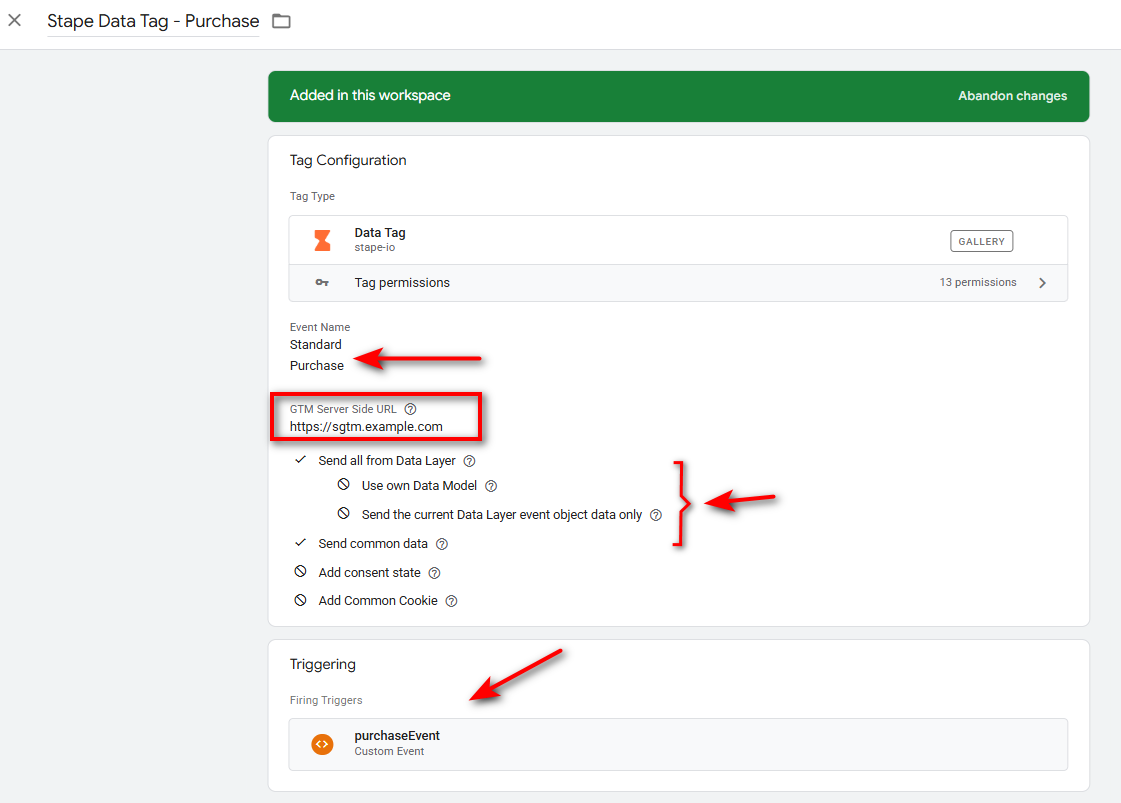
When configured in this way, the Data Tag will send all the Data Layer event data to the server container, which you can use to set up the Event Data variables necessary for the conversion tracking.
Adding custom event data
If you want to also send some custom data, you can do this by mapping it to the Event Data section.
Below is an example where the discount, shipping cost, and customer type are mapped to the Data Tag. These parameters can now be retrieved as Event Data variables in the server-side container.
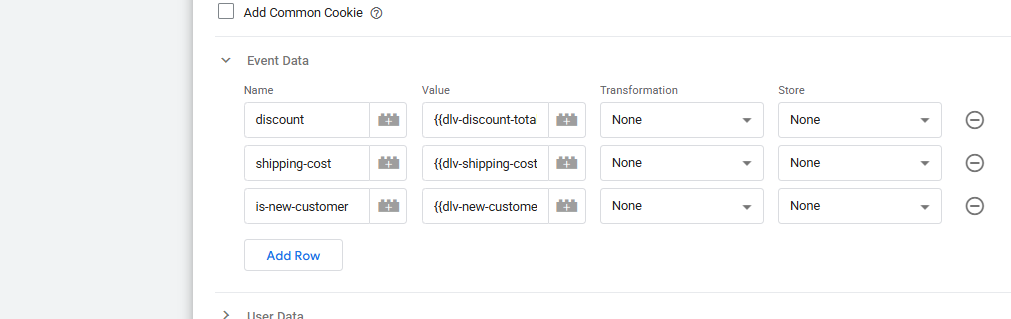
Google Tag + GA4 event configuration
If you don’t already have one, you’ll need a Google Tag and GA4 Event tag for these next steps.
If you do have these tags and you’re already passing some matching parameters, you may continue to use those but please ensure that your tags include all of the noted parameters.
In your Google Tag, you’ll need the following Configuration parameter keys and the related values:
Key | Value |
|---|---|
send_page_view | true |
server_container_url |
|
page_location |
|
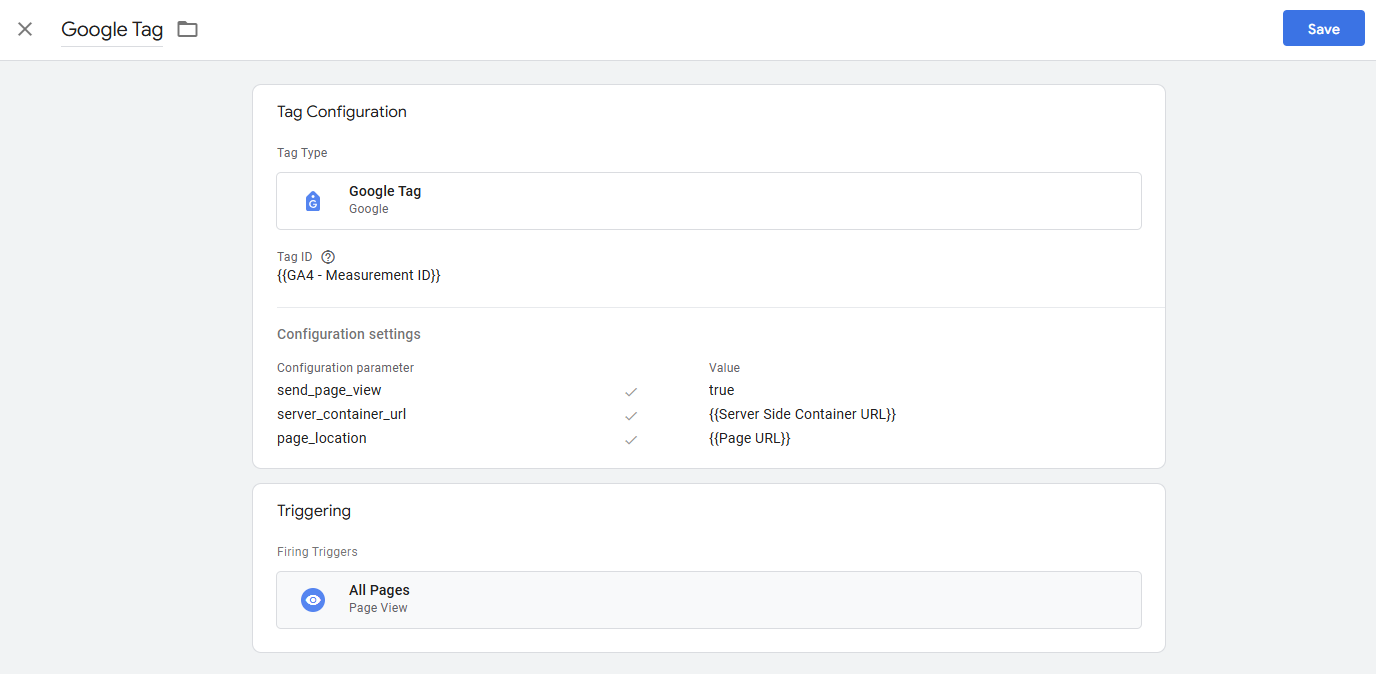
After you’ve set up the Google Tag, you’ll need to move on to the GA4 Event tag.
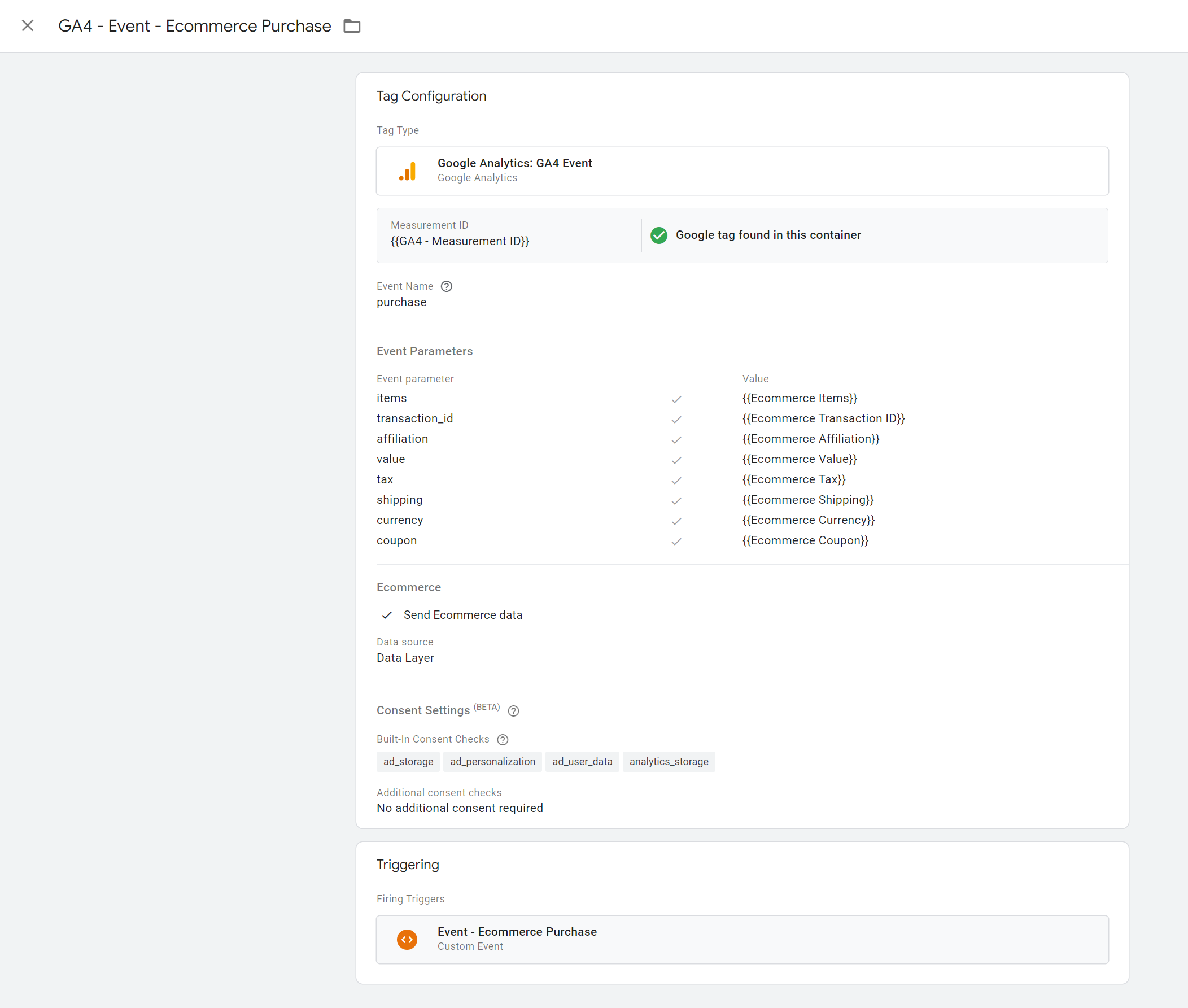
This tag is responsible for sending the actual transaction parameters to the server-side container. The names you choose for the variables associated with a given event parameter will be, in turn, how you reference them in your server-side container.
Please configure your GA4 Event tag as follows:
Server-side GTM configuration for Awin
Now that we’ve configured the necessary client-side tags to send information to your server-side container, we can begin using these parameters in your client-side configuration.
As a part of this process, we’ll set up a few more tags to properly share the information with Awin.
Awin tag
Navigate to Tags.
Click New and choose Discover more tag types in the Community Template Gallery.
.png)
3. Searching for Awin will reveal the Awin server-side tag published by Stape.
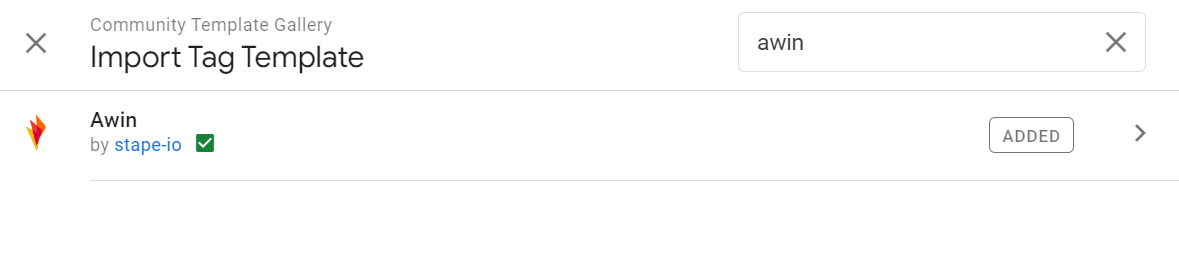
Add this tag to your workspace, accepting any applicable notices. This tag will need permissions to act on your behalf.
Please configure this tag with the All Pages and your applicable Purchase Event as triggers. Please also apply the proper parameter variables.
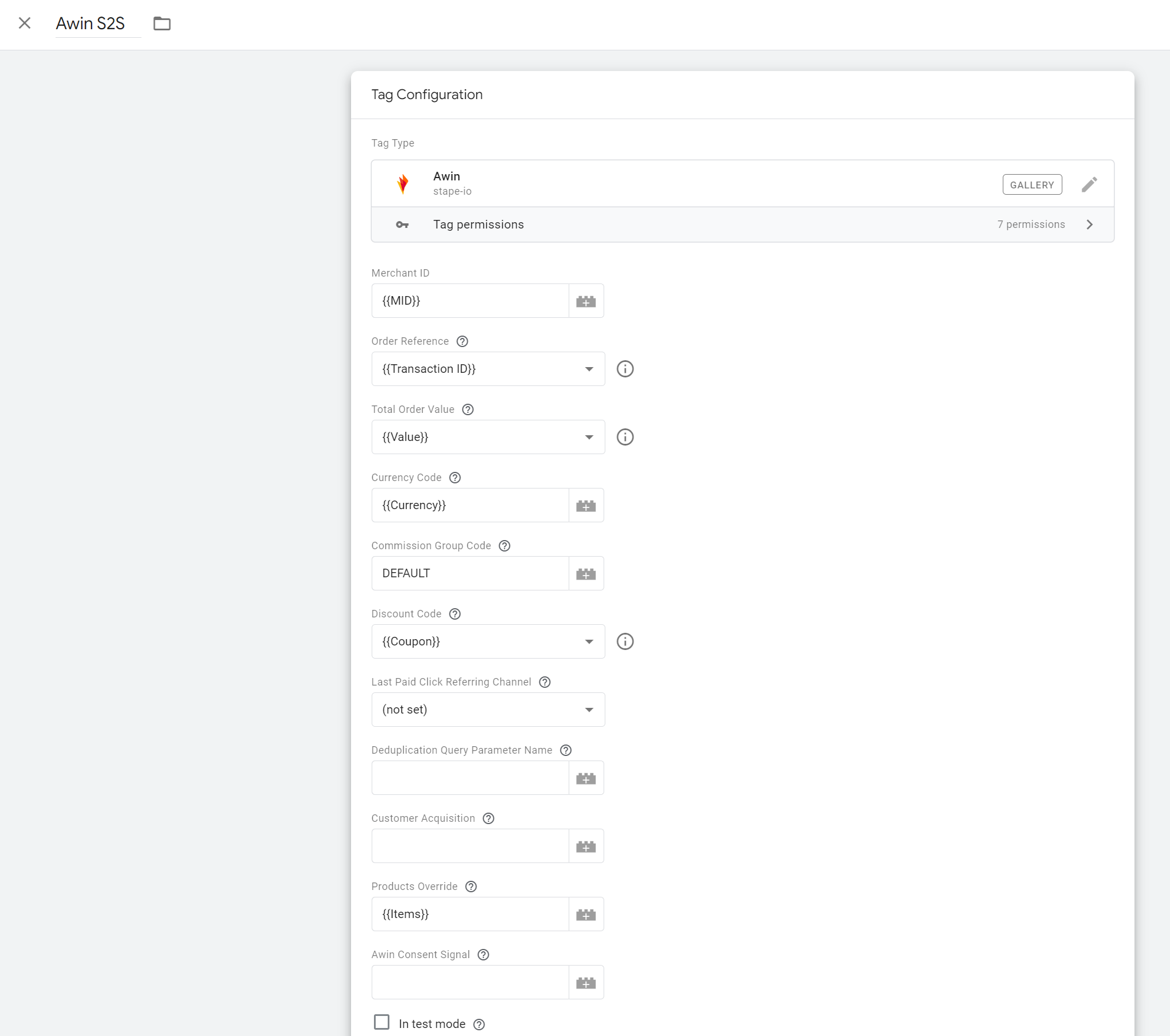
Once you’ve configured your Awin tag, please save the tag.
Note
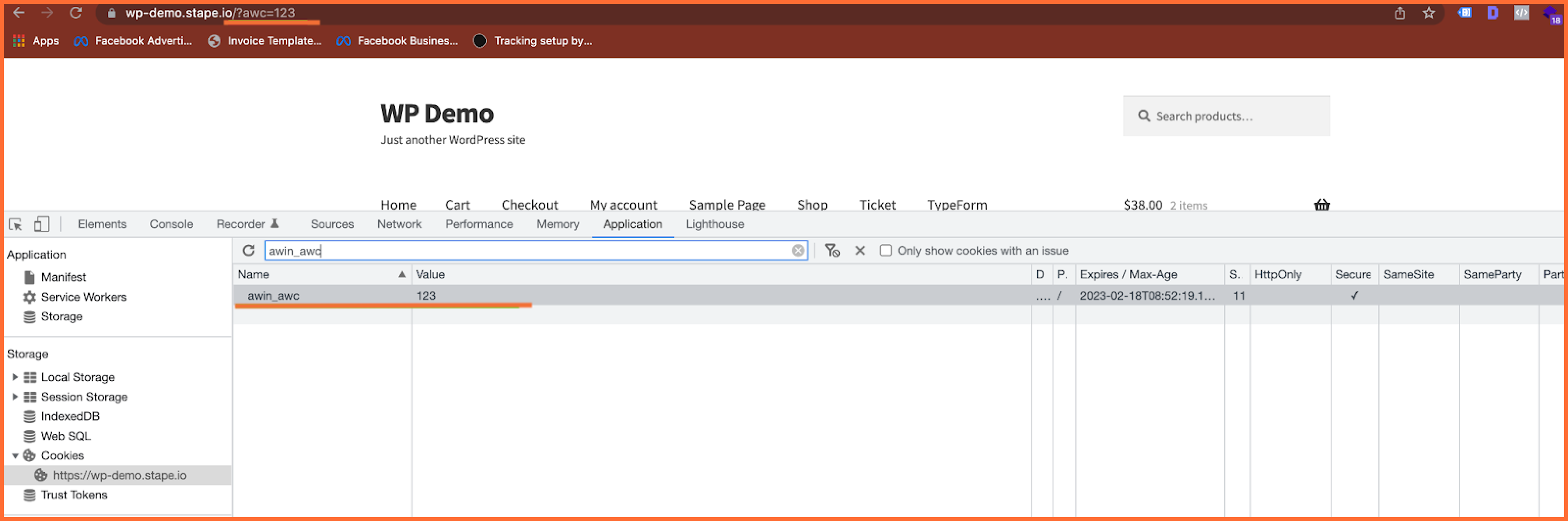
The All Pages trigger is critical for our tag to function as it enables us to set the
awin_awccookie.
Stape Data Tag - server side configuration
If you prefer to use the Stape Data Tag, please follow the required server-side configuration.
Stape Data Tag configuration
Server-side configuration
The next step is to implement the Stape Data Client on the server container. The Data Client is responsible for processing the incoming request sent by the Data Tag, exposing the events and the event data in the server container.
Import Data Client template
Client templates can’t be imported from the template gallery, so please download the Data Client template from the official Stape repository and import it manually.
To manually import the template, on the server container, go to Templates and in the Client Templates section click New. The Template Editor view will open, click on the 3 dots in the top-right corner and select Import.

Next, select the template.tpl file from the file downloaded from the Stape repository (note that you must unzip the file).
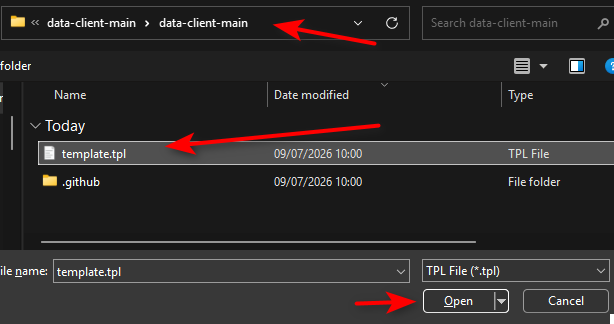
Finish the import by clicking Save. When you see the Template created message in the bottom-left, the template has been successfully imported so you can now exit the template editor screen.
Last click deduplication
To enable automatic last-click de-duplication, Awin’s Last Click Identifier is the quickest option. Alternatively, you may use your own internal logic but make sure your integrator has approved this process before proceeding.
This tag will read the incoming page URL and look for any configured URL appends to determine the referrer. In the case of an Awin referral, this value will be aw.
Important
Before starting this step, you’ll need to have completed the previous sections of this article.
Start by downloading this repository and ensuring that you have
template.tplextracted.After extracting this file, navigate to Templates in GTM and click New.
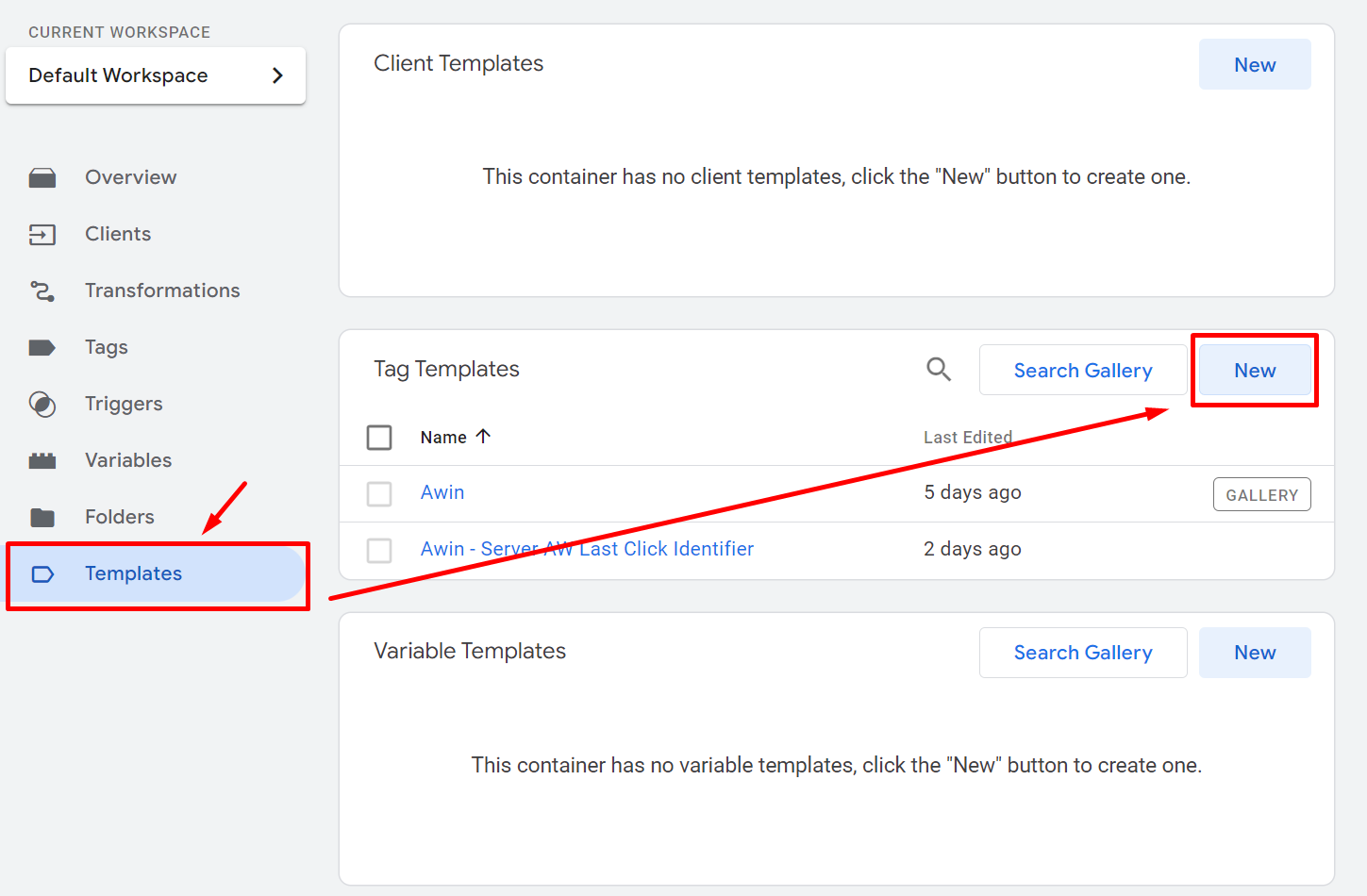
Open the dot menu in the top right and choose Import. You’ll need to select the
template.tplfile that you previously extracted.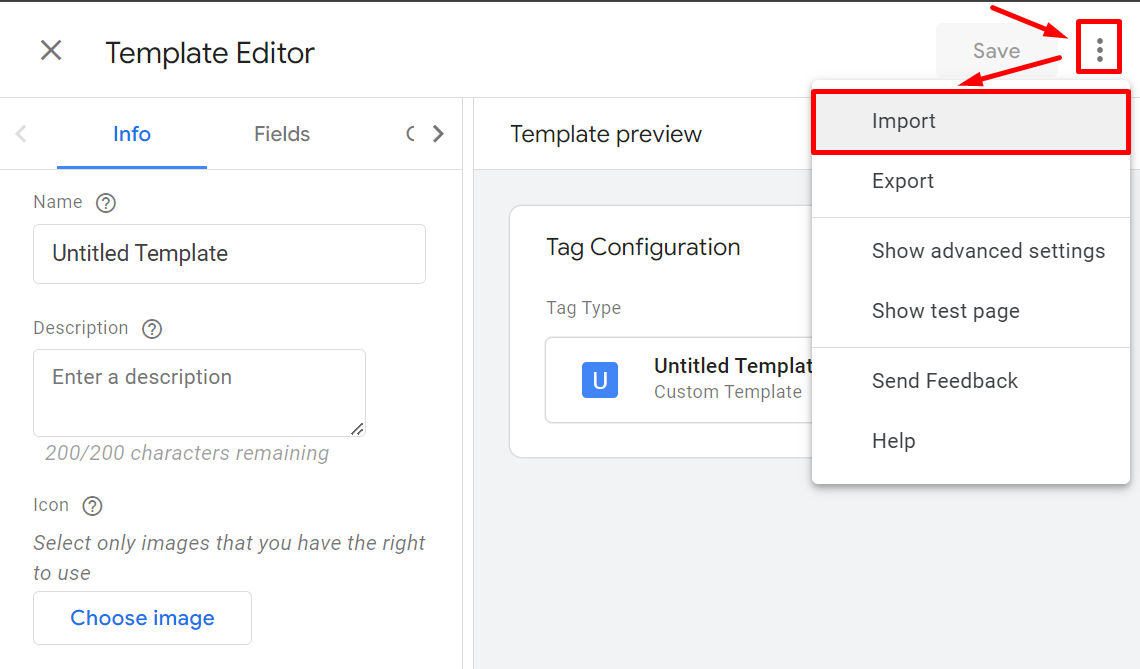
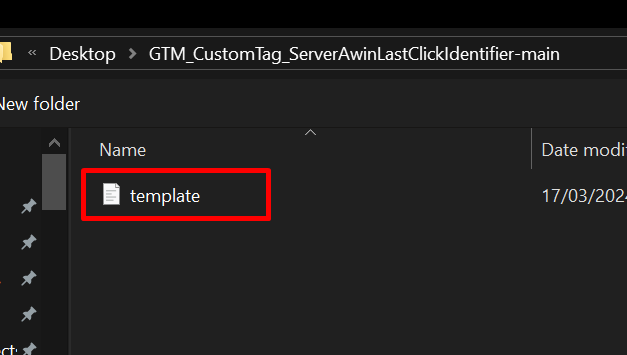
After importing, simply save the template. We’ll come back to this tag later.
Navigate to the Variables section of your server-side GTM container and create a new User Defined Variable.
This variable should be a
Cookie Valuetype variable and given both the name and value ofServerAwinChannelCookie.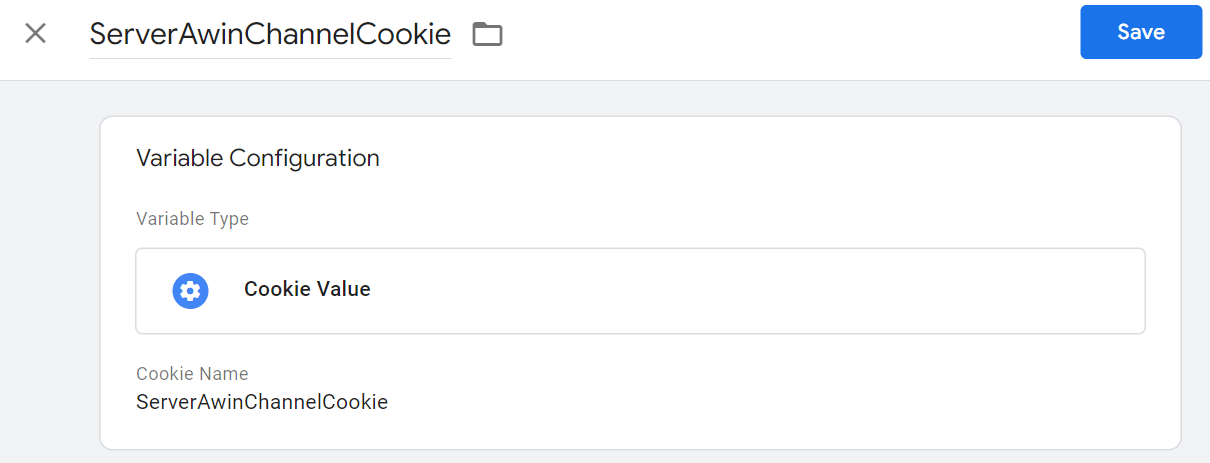
Save this variable and add our newly imported
AW Last Click Identifiertag to your space.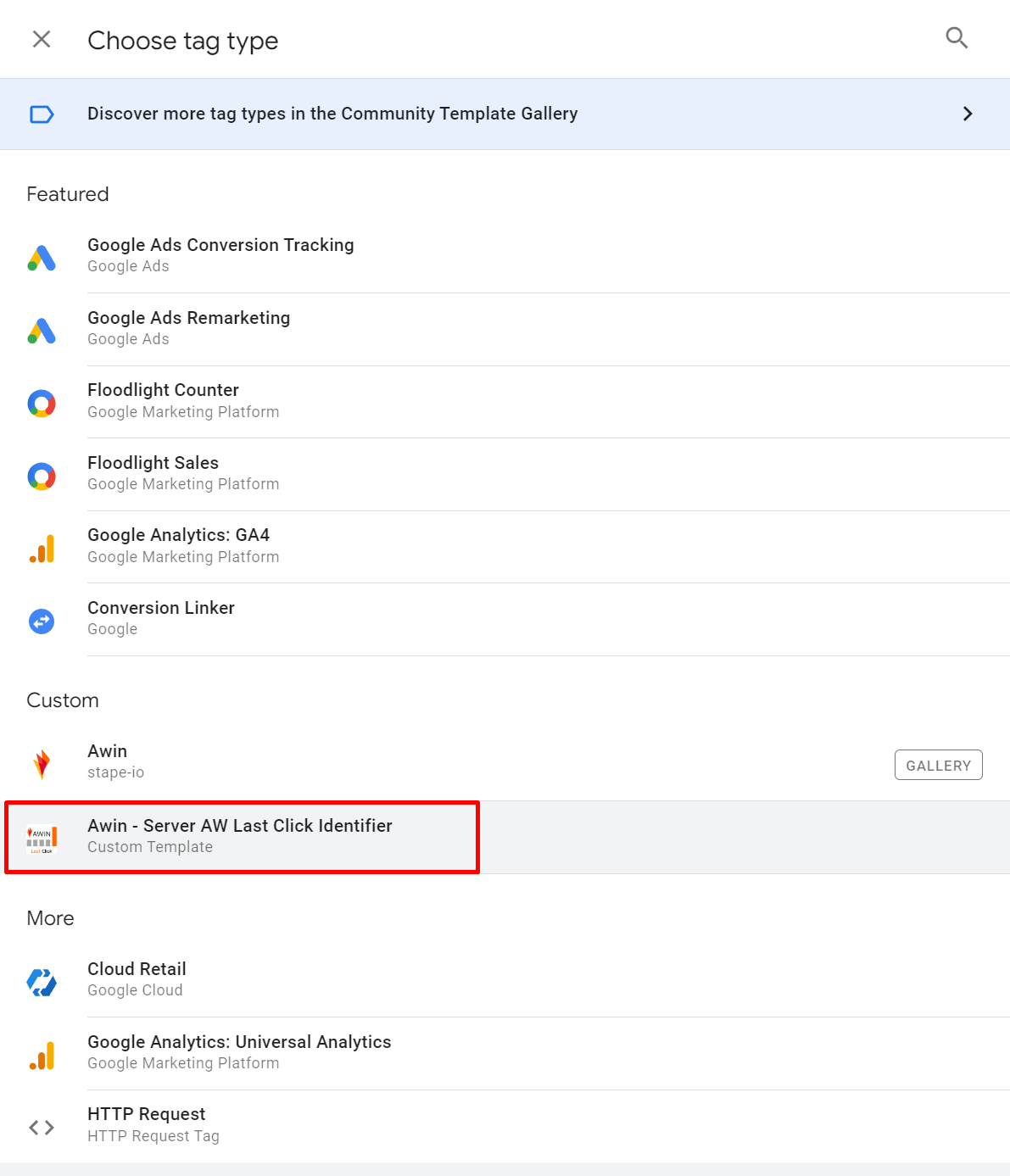
With this tag, add an All Pages trigger and configure the following fields as such:
Used Source Parameters | source,utm_source,gclid,fbclid |
Awin Source Values | awin,aw |
Page URL | variable for page_location |
The Page URL variable should be a variable of the type Event Data, and the Key Path of this variable will need to be set as page_location, the GA4 automatically collected event. The Tag Configuration for the Awin - Server AW Last Click Identifier tag will then look like below.
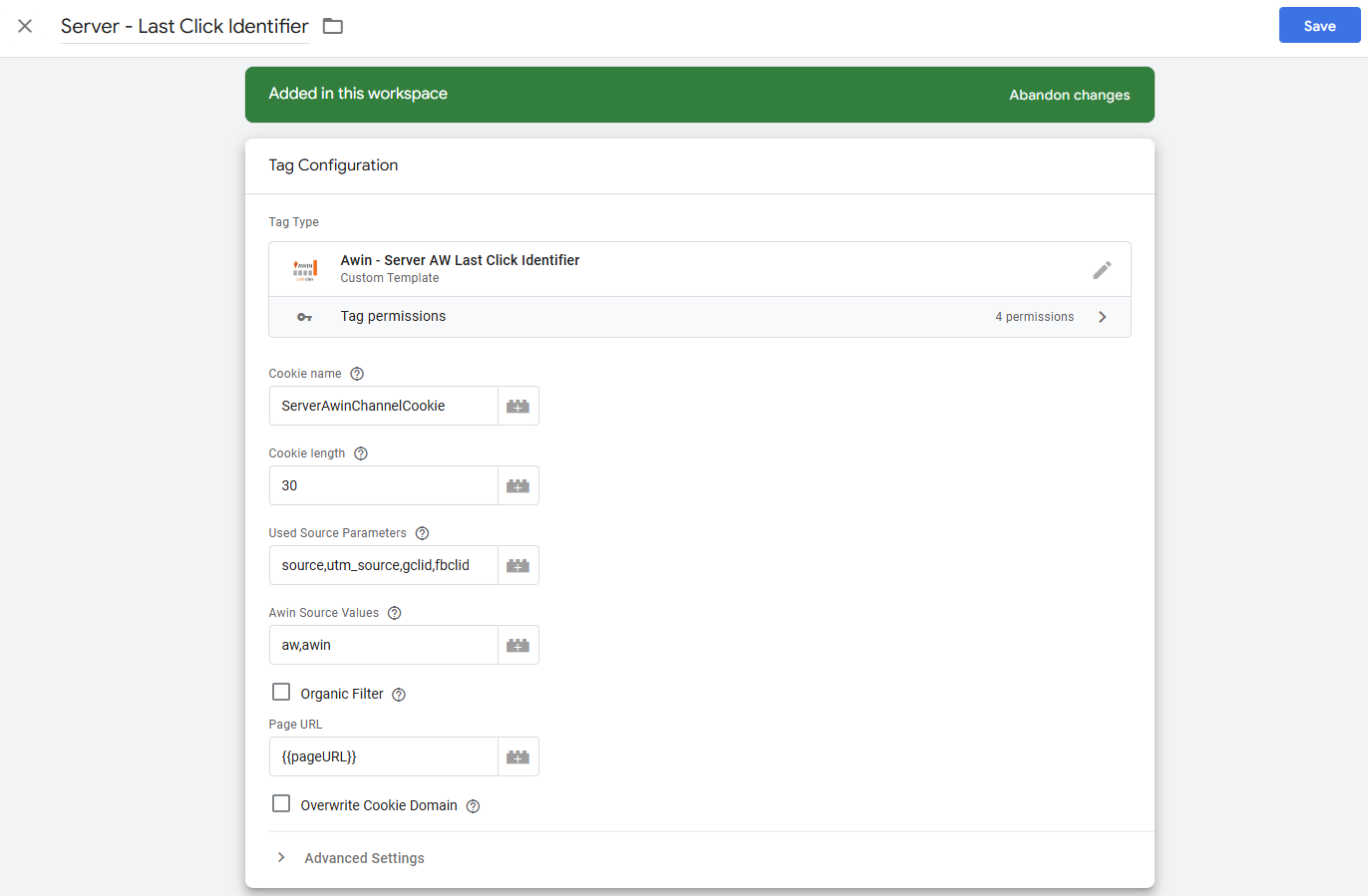
Now that we’ve configured this tag, please add the ServerAwinChannelCookie variable as the chosen variable for your Awin Tag’s Last Paid Click Referring channel parameter.
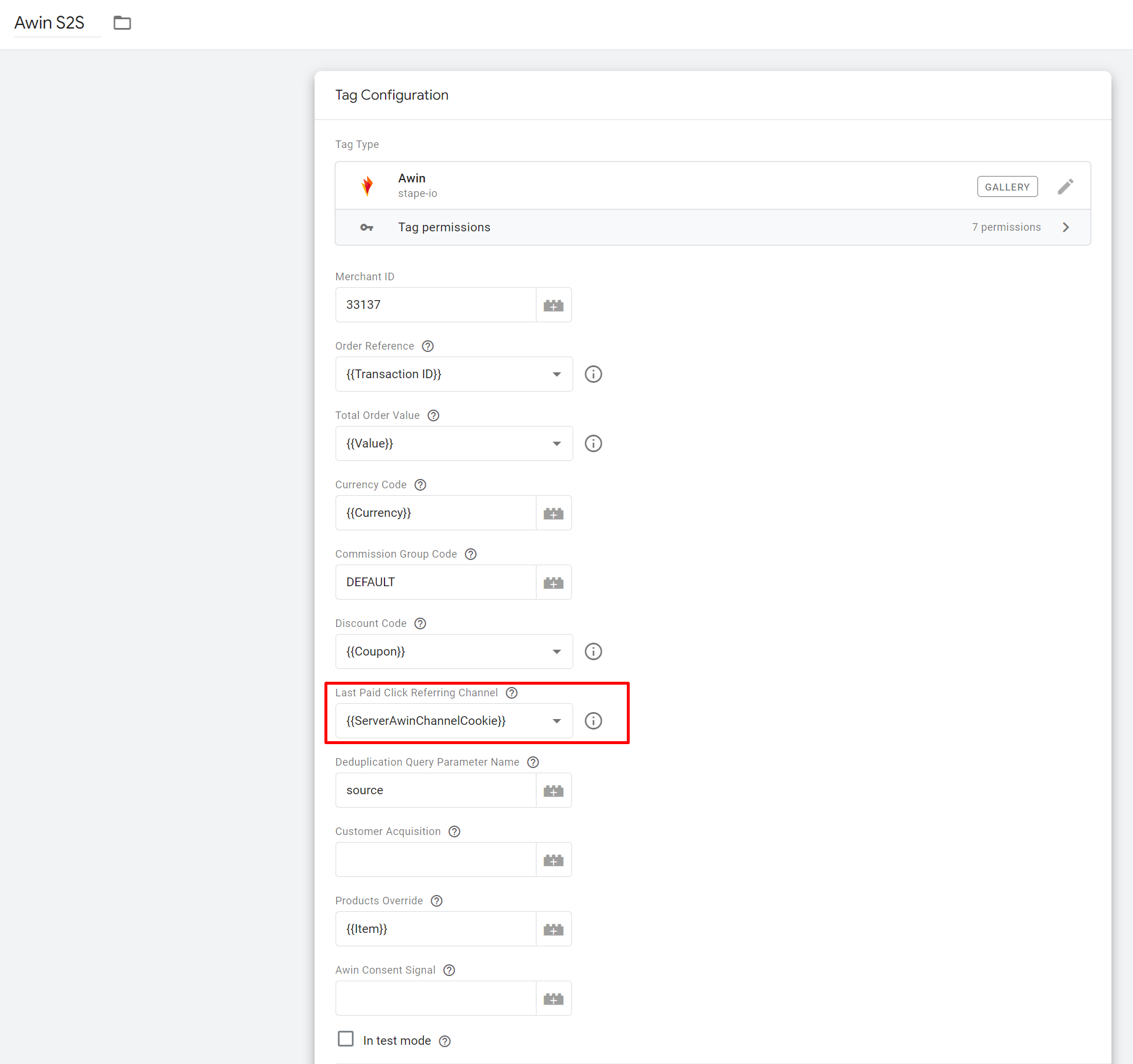
And with that last item configured, you’ve successfully set up your GTM S2S integration! All that’s left to do is run a tracking test.
If you have any questions on this process, please contact your assigned Awin Integration Analyst.
Stape supported integration
If you’re having trouble or running into technical limitations in completing this process of your integration, Awin has partnered with Stape to offer a managed integration process of server-to-server for compatible advertisers.
For more information on this process, please see our explanation of their service here.
Consent
As an advertiser, it’s your responsibility to obtain cookie consent for Awin’s tracking and inform us of the consent status. We strongly recommend making use of Awin consent signals in Google Tag Manager. Further information regarding consent can be found on consent framework.
Practical tips
Products override
By default, the Stape tag will search the event data for the items array, which has the GA4 structure. You can override this option by passing a different array the Products Override field, but please note that the object structure should be the same as the GA4 one (i.e. it uses the same key names). Example of supported structure:
[
  {
    "item_id": "ID_98765",
    "item_name": "Nike Running Socks",
    "item_category": "Accessories/Socks",
    "item_sku": "SKU_98765",
    "price": 9.99,
    "quantity": 2
  }
]
Additionally, the Products Override option allows you to specify the commission group code for each product by passing a commission_group_code field to the objects, for example:
[
  {
    "item_id": "ID_98765",
    "item_name": "Nike Running Socks",
    "item_category": "Accessories/Socks",
    "item_sku": "SKU_98765",
    "price": 9.99,
    "quantity": 2,
    "commission_group_code": "RUNNING"
  }
]
Note that product level commissioning should be done via the parts parameter; passing a commission_group_code is only for product trend reporting, it won’t have any effect on the commission group(s) allocated to the sale in question.
Custom parameters
This option lets you specify custom sale data that will appear in the custom_parameters field in the Awin Transactions report. The Parameter Key field sets the custom parameter’s index, and the Parameter Value field sets the value for each index.
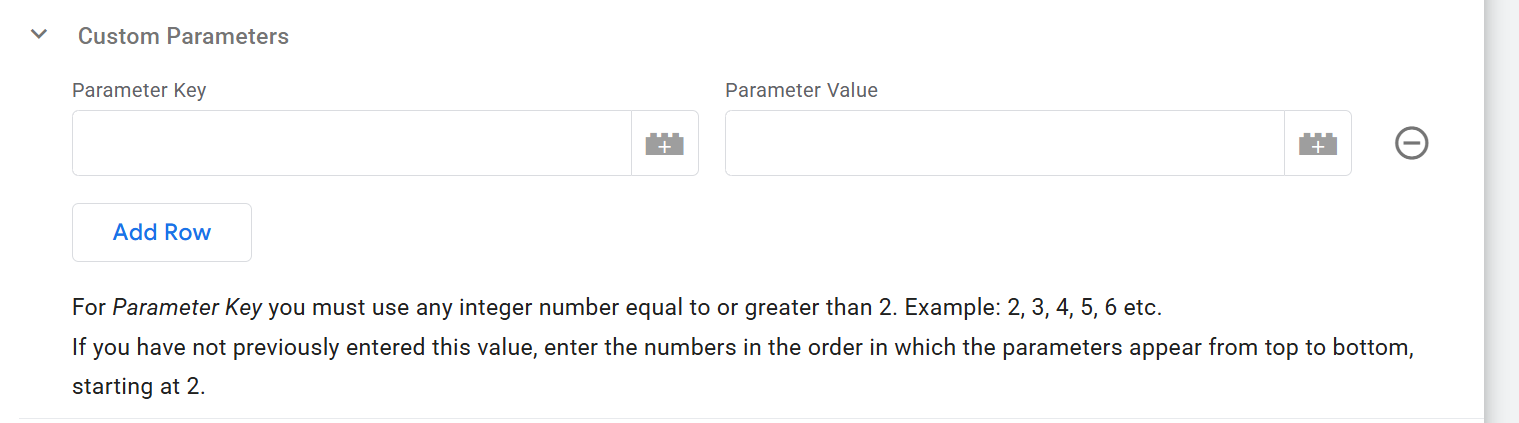
For example:
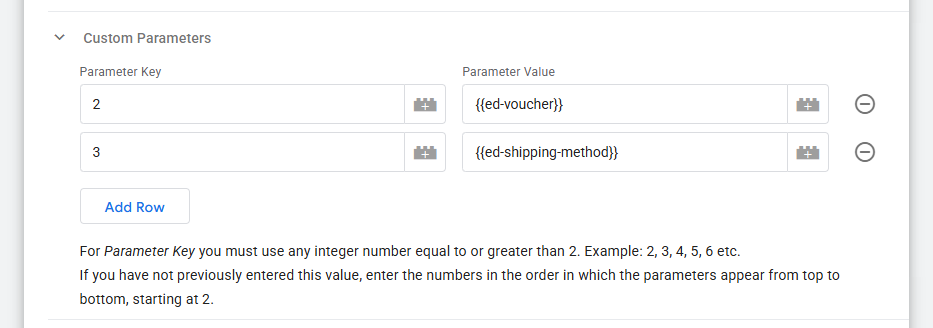
The above setup would generate the following custom parameters for the sale in question in the Transactions report:
1: gtm_s2s_stape_GTM-MQFJ4FKH,2: 10OFF ,3: same_day_shipping
Note that index 1 is reserved for the tracking method identifier, so you must start at index 2.
Note that the indexing order should be the same as the one specified in the client-side tag (as explained here).
Event names
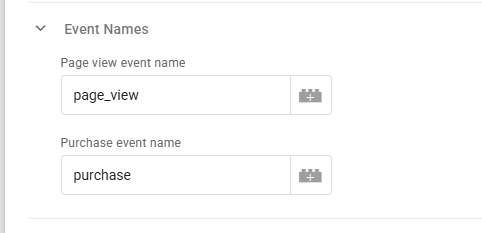
The Event Names field tells the plugin which event type triggered the tag. The Awin Stape sGTM implementation uses the same tag for page view and purchase events, unlike the client-side implementation, which uses a different tag for each event type.
Populate each field with the corresponding event name. For a typical setup where the events sent to the server container are page_view and purchase, hard-code these event names in their respective fields, as shown below.
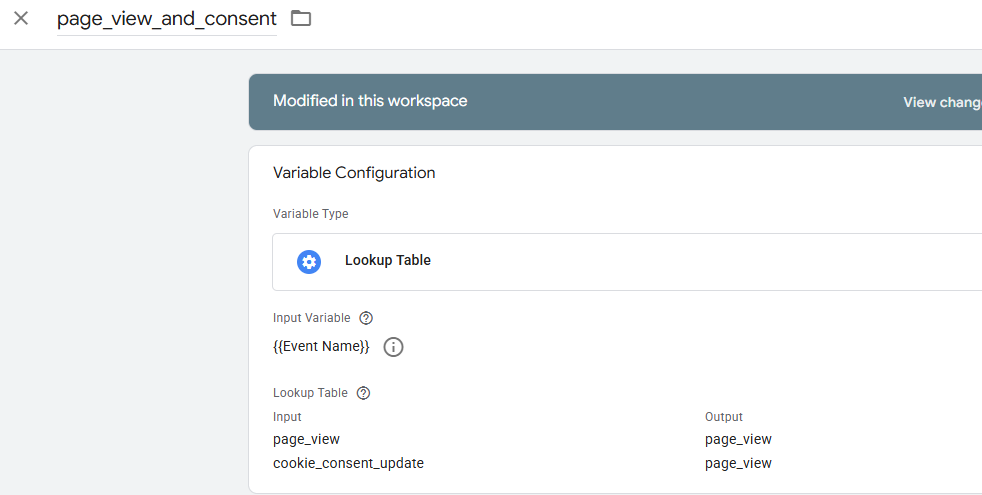
However, if you have a consent setup, you must also send a ‘consent updated’ event to the server container to ensure that the tag is triggered on this event as well. For the Stape tag, the ‘consent updated’ event should be communicated as a page_view event, in which case you should use a Lookup Table variable that returns page_view for both the ‘consent updated’ and the page_view events, as shown below.
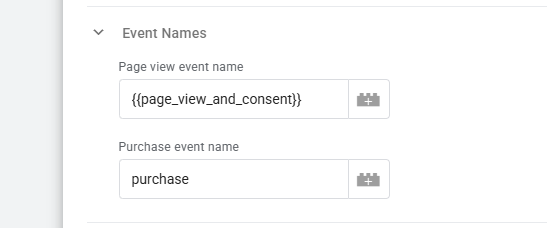
Below you can see how this variable is configured.