When implementing Awin via Google Tag Manager (GTM), the integration of both client-side and server-side Awin tracking is mandatory. You may well find a solution for your specific use case in the implementation examples and custom solutions below. Naturally, there may be various possible approaches.
Custom solutions - custom code examples
Discover a solution for your use case in the following compilation. In some cases, it can be helpful to use customer-specific solutions via custom code.
Setup data layer variables
Example for custom specific data layer setup
Place the following code on the confirmation page of your website (the code must be positioned above the Google Container code on the page):
<script>
dataLayer = [{
'transactionTotal': "{transactionTotal}",
'transactionCurrency': "{transactionCurrency}",
'transactionID': "{transactionID}",
'transactionPromoCode': "{transactionPromoCode}",
'event': "awin.dl.ready"
}];
</script>
The text in { brackets } are placeholders - it will need to be replaced with the variables your site uses for the following information:
transactionTotal: The total cost of the sale (before or after VAT/delivery).
transactionCurrency: The ISO currency code for the currency that was used on the transaction.
transactionID: The unique order reference associated the transaction.
transactionPromoCode: The voucher code used with the transaction (optional).
You may wish to use PHP to load these variables. Alternatively, if you are using a third-party e-commerce platform, their support team may be able to provide you with the variables to use.
Example
If a customer purchases a product for £5.99 using the voucher code 'HALFPRICE', the code should load on the confirmation page as:
<script>
dataLayer = [{
'transactionTotal': "5.99",
'transactionCurrency': "GBP",
'transactionID': "4-815162342",
'transactionPromoCode': "HALFPRICE",
'event': "awin.dl.ready"
}];
</script>
Publishing tags within Google Tag Manager
When you have implemented all of the required functionality into the Tag Manager interface, click Publish to apply the changes to your site.
Array for custom parameters
Create a new variable - Custom JavaScript type:
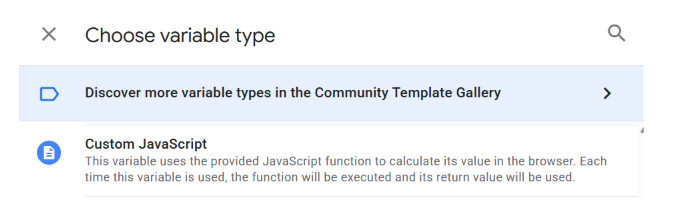
Paste this code into the GTM variable configuration:
function() {
  return [
    "{{value1}}",
    "{{value2}}",
    "{{value3}}",
  ];
}
(Custom JavaScript to create an array for Awin custom parameters)
Please be aware that the text in { brackets } are placeholders - it will need to be replaced with the variables you want to pass us as custom parameters. The example shows three values, but you can reduce/add other variables based on your needs.
Add the above created variable to our conversion tag, in the Custom Parameters field and Save:
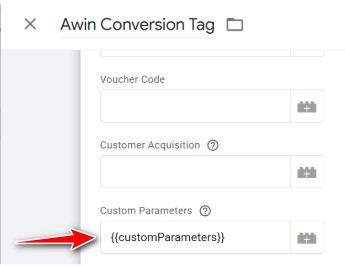
Custom parameters details
The Custom Parameters field allows passing custom data from the advertiser checkout/thankyou website into Awin reporting. This field should be set to an Array of Strings, where each index is a separate custom parameter.
For example, passing the following array to this parameter:
[“t-shirt“, “new_customer“, “same_day_shipping“]Will result in the the following custom parameters being assigned to the transaction in the Awin platform:
1: gtmPlugin_1.0.7 ,2: t-shirt ,3: new_customer,4: same_day_shipping
Note that custom parameter 1 is reserved for the tracking method (e.g. gtmPlugin_1.0.7 ), so your data will start from parameter 2 onward.
Below is an example of how different variables can be parsed inside a array using a custom JavaScript variable.
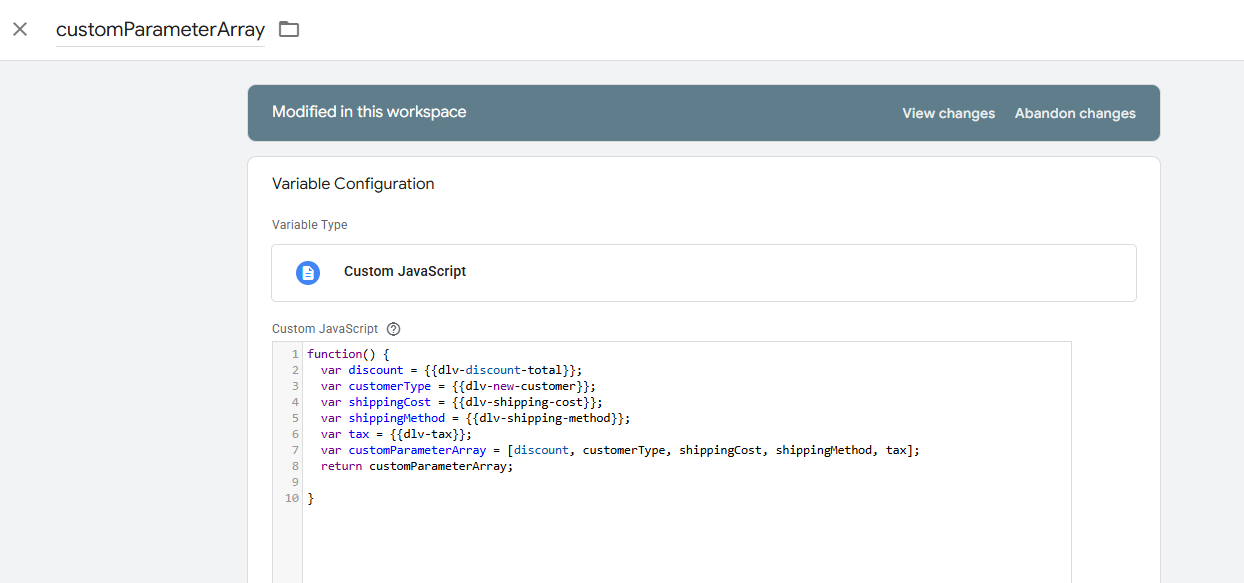
Please note that the indexing order should be the same as the one specified for the server-side tag implementation (as explained here).
Shop content first
In cases where data is missing (resulting in ‘undefined’ values) or loading delays occur, it can help to load the Awin conversion tag or MasterTag only after all page content has finished loading. This ensures that all order data is available before being transmitted to Awin. GTM offers ‘content first’ trigger events:
DOM Ready, or
Window Loaded
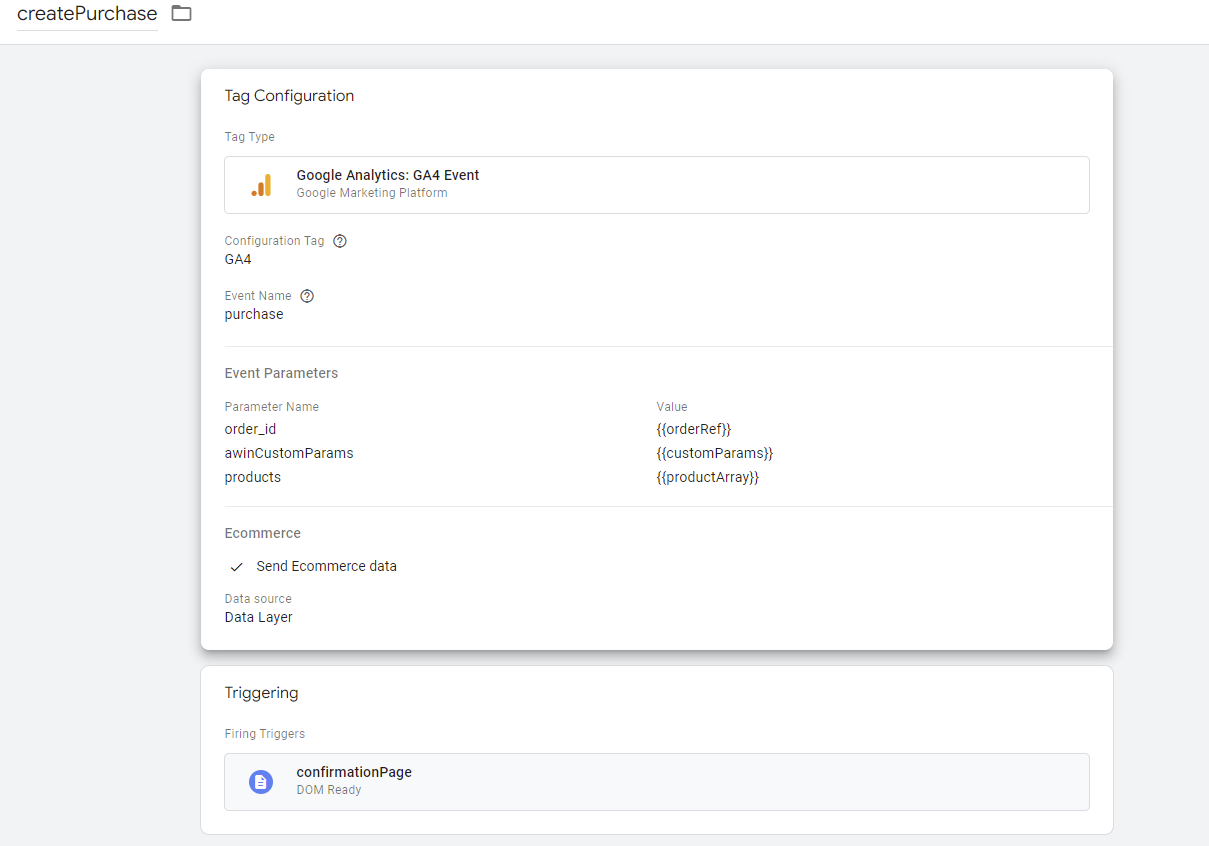
Related links for this loading event topic:
https://support.google.com/tagmanager/answer/7679319?hl=en
https://developer.mozilla.org/en-US/docs/Web/API/Window/load_event
MasterTag integration in single-page application
This solution will work if page URL is changing when user moves to different sections of the single-page application (sometimes shortened to SPA).
Use case: MasterTag integration in single-page application using Google Tag Manager.
Create a Journey Tag to fire on the landing page but not the checkout page.
Create a History Change Trigger with exception (don’t fire on checkout page).
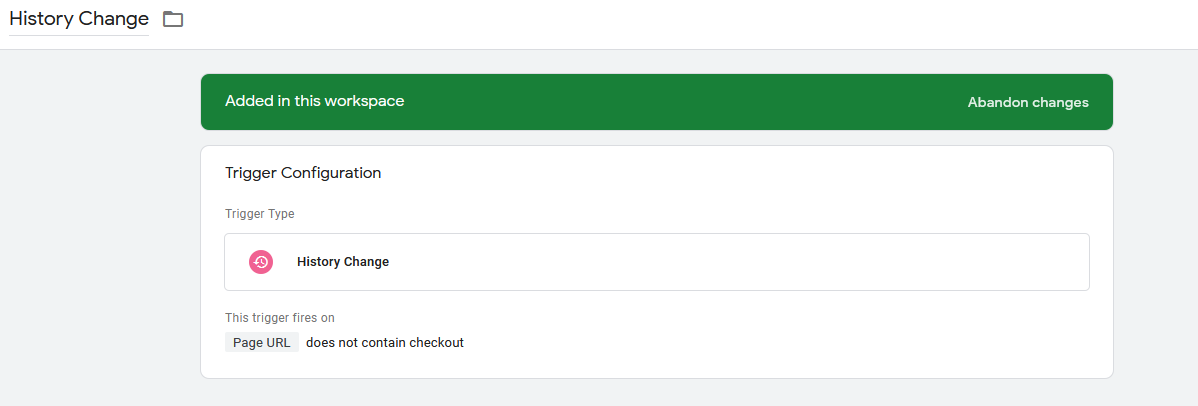
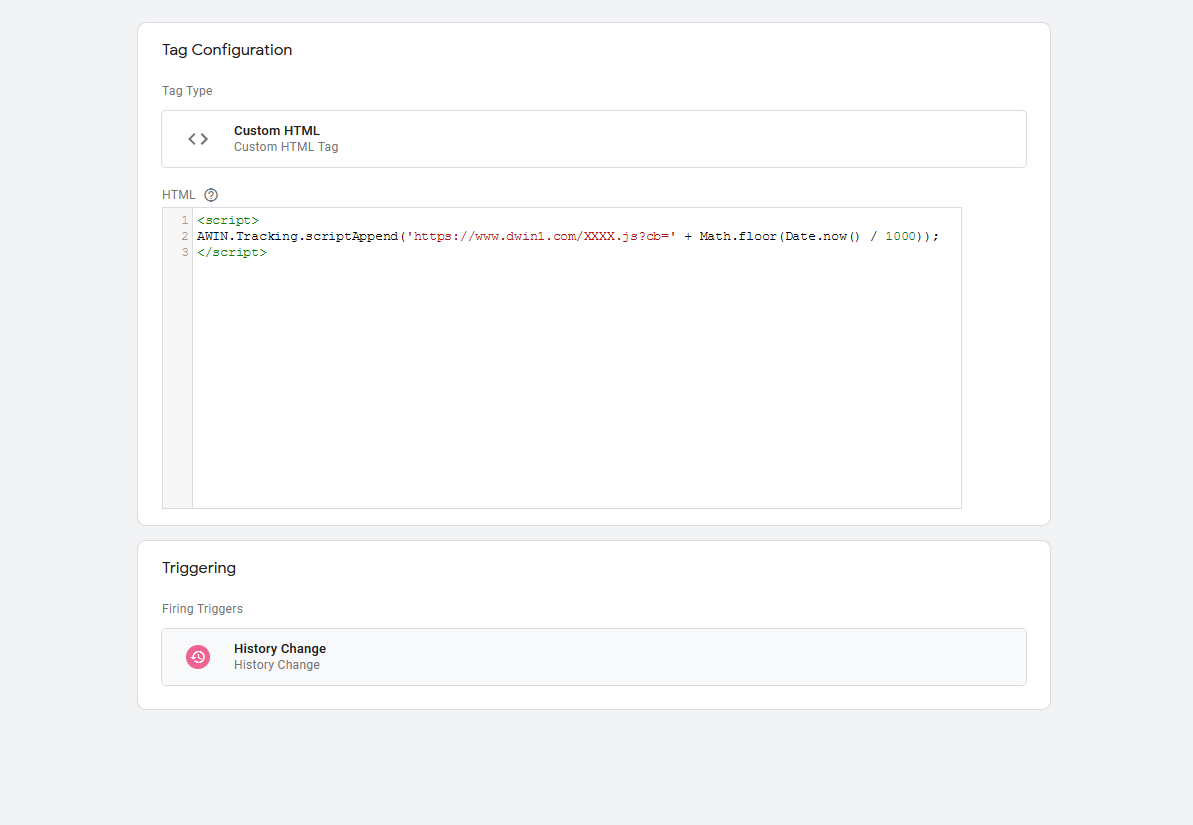
Create a custom HTML Tag, name it
Awin MasterTag - History Changeand use the code below (replace the XXXX with advertiser ID).
<script>
AWIN.Tracking.scriptAppend('https://www.dwin1.com/XXXX.js?cb=' + Math.floor(Date.now() / 1000));
</script>
Add the History Change trigger to
Awin MasterTag - History Changeand save the tag.
Removing VAT or shipping costs from amount
Use case: reduce order total value by the amount of value added tax (VAT) and shipping costs (target: net amount).
Create a new custom JavaScript.
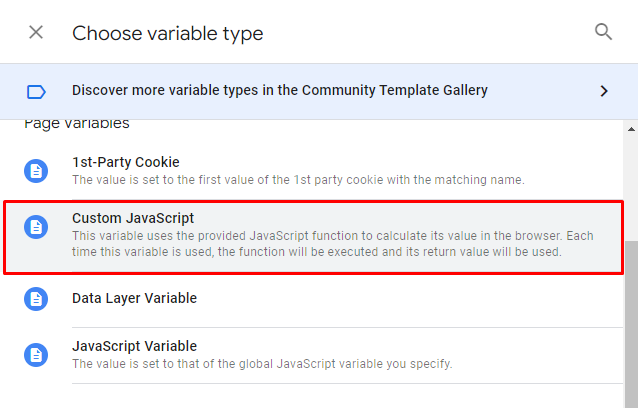
Make a code that takes the DataLayer variables for the total revenue, the VAT and the shipping fee, and run a subtraction equation using the “-“ (minus) JavaScript Subtraction Operator.
Use the following code as a base, and edit to your needs:
function(){
  // UPDATE the {{}} variables to your DataLayer variables.

  var revenue = {{Transaction Revenue}};
  var vat = {{Transaction VAT}};
  var shipping = {{Transaction Shipping}};

  var totalAmount = revenue - (shipping + vat);

  return totalAmount.toFixed(2);
}
The above code will return the resulting value from the subtraction equation, rounded to two decimal points using the .toFixed( ) method.
Then simply use this custom JavaScript variable in the Awin conversion tag.
Product-level tracking
The product-level tracking parameter allows passing product data from the website into the Product Performance report on the Awin platform.
This field should be set to an Array of Objects containing the product data. Each product should be a separate object. Any of the following objects structures are supported:
GA4 (ecommerce.items) structure:
[
  {
    "item_id": "ID_98765",
    "item_name": "Nike Running Socks",
    "item_category": "Accessories/Socks",
    "sku": "SKU_98765",
    "price": 9.99,
    "quantity": 2
  }
]
Example with multiple products:
[
  {
    "item_id": "ID_98765",
    "item_name": "Nike Running Socks",
    "item_category": "Accessories/Socks",
    "sku": "SKU_98765",
    "price": 9.99,
    "quantity": 2
  },
  {
    "item_id": "ID_123",
    "item_name": "Nike Outdoor Socks",
    "item_category": "Accessories/Socks",
    "sku": "SKU_1235",
    "price": 10.99,
    "quantity": 1
  },
  {
    "item_id": "ID_45645",
    "item_name": "Nike Running Shoes",
    "item_category": "Accessories/Socks",
    "sku": "ID_45645",
    "price": 45.99,
    "quantity":
  },
]
Older Universal Analytics (ecommerce.purchase.products) structure:
[
  {
    "id": "ID-12345",
    "name": "Nike Air Zoom Pegasus 38",
    "category": "Running Shoes",
    "sku": "SKU-12345",
    "price": "119.99",
    "quantity": 1
  }
]
The recommendation is to use GTM configuration - without custom coding. However, if custom HTML or custom script in GTM is strictly preferred, you can use the following example as a guide for your own implementation.
Example showcase with GTM custom HTML, inclusive
Awin conversion tag, conversion pixel and MasterTag (script call for purchase data transmission)
Product-level tracking (PLT), and/or
Custom parameters, and/or
Customer acquisition
Notes
Tag location: Order Confirmation page.
Create a new custom HTML tag in GTM and paste the below the code there.
Replace XXXX with the relevant Advertiser ID and update all variables.
<script type="text/javascript">
var sProtocol = (location.protocol == "http:") ? "http" : "https";

var url = sProtocol + "://www.awin1.com/sread.img?tt=ns&tv=2&merchant=XXXX&amount=" + parseFloat(fTotalAmount).toFixed(2) +"&ch=" + sChannel +"&cr=" + sCurrency;
url +="&parts=DEFAULT:" + parseFloat(fTotalAmount).toFixed(2) + "&ref=" + sOrderReference +"&testmode=0&vc=" + sVoucherCode +"&customeracquisition=" + sCusType +"&p1=" + sp1+"&p2=" + sp2;
var awPixel = new Image(0, 0);
awPixel.src = url;

var awProductsForm = document.createElement("form");
awProductsForm.name = "aw_basket_form";
awProductsForm.setAttribute("style", "display: none;");
document.getElementsByTagName("body")[0].appendChild(awProductsForm);
var awProductsTextArea = document.createElement("textarea");
awProductsTextArea.id = "aw_basket";
awProductsTextArea.wrap = "physical";
for (var i = 0; i < aProductId.length; i++) {
    awProductsTextArea.value += "AW:P|XXXX|" + sOrderReference + "|" + aProductId[i] + "|" + aProductName[i] + "|" + parseFloat(aProductItemPrice[i]).toFixed(2) + "|" + aProductQuantity[i] + "|" + aProductSku[i] + "|DEFAULT|" + aProductCategory[i] + "\r\n";
}
document.aw_basket_form.appendChild(awProductsTextArea);

var AWIN = AWIN || {};
AWIN.Tracking = AWIN.Tracking || {};
AWIN.Tracking.Sale = {};
AWIN.Tracking.Sale.amount = parseFloat(fTotalAmount).toFixed(2);
AWIN.Tracking.Sale.channel = sChannel;
AWIN.Tracking.Sale.currency = sCurrency;
AWIN.Tracking.Sale.orderRef = sOrderReference;
AWIN.Tracking.Sale.parts = "DEFAULT:" + parseFloat(fTotalAmount).toFixed(2);
AWIN.Tracking.Sale.test = "0";
AWIN.Tracking.Sale.voucher = sVoucherCode;
AWIN.Tracking.Sale.customerAcquisition = sCusType; // "NEW" or "RETURNING" for existing online shop users
AWIN.Tracking.Sale.custom = [sp1,sp2];

var awMastertag = document.createElement("script");
awMastertag.setAttribute("defer", "defer");
awMastertag.src = sProtocol + "://www.dwin1.com/XXXX.js";
awMastertag.type = "text/javascript";
document.getElementsByTagName("body")[0].appendChild(awMastertag);
</script>
Individual adjustments to your own (GTM/onlineshop) data sources are still required for this.
Override default product properties
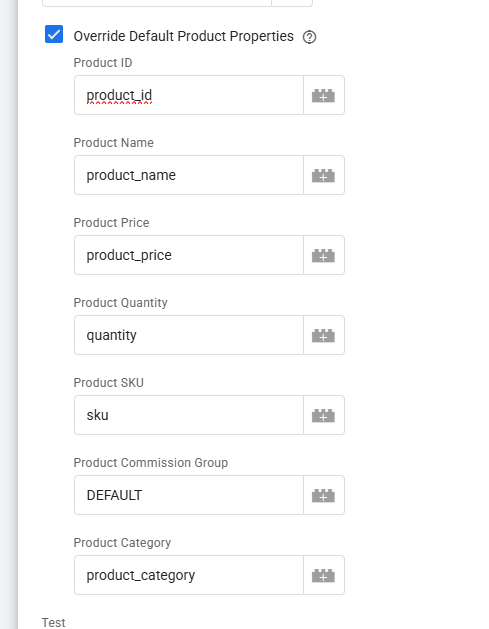
If the objects inside your product array have a different structure, then you can tick the Override Default Product Properties option and specify the names of the keys inside your object.
For example, if you have the following object structure:
{
  "product_id": "ID_98765",
  "product_name": "Nike Running Socks",
  "sku": "SKU_98765",
  "product_category": "Accessories/Socks",
  "product_price": 9.99,
  "quantity": 2
}
Then you should specify the following structure:
Remove tracking results from gtm-msr.appspot.com
If you would like to filter out tracking results from gtm-msr.appspot.com in some GTM integrations (with empty or undefined purchase data) you can remove this kind of requests with the following workaround.
In order to filter these results, you have to add exceptions to their conversion tag GTM configuration for the domains:
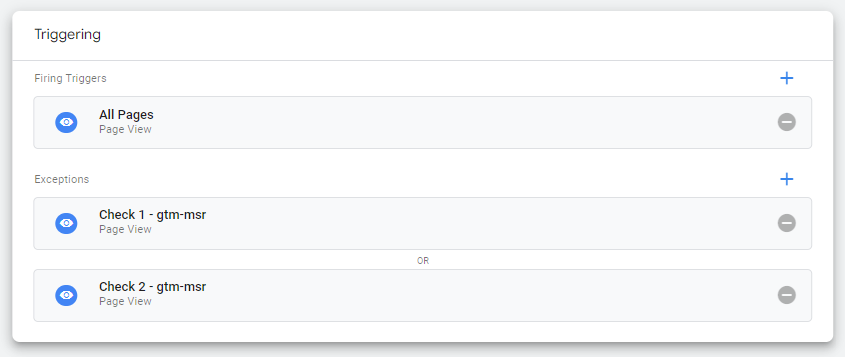
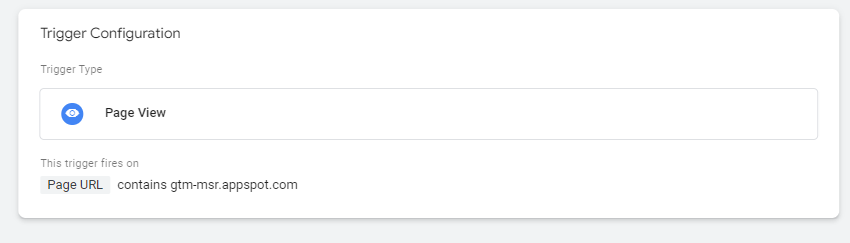
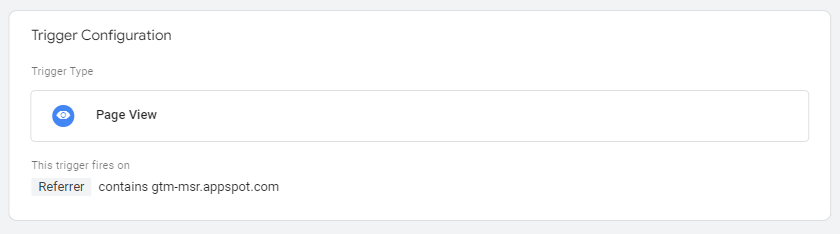
The exceptions are ‘Page View’ triggers and should be configured as such:
One Page View will be configured as a Page URL and the other as a Referrer. This creates an OR check.
Customer type check
A simple application example for distinguishing between new and existing customers.
Showcase example
You can write a function in the data layer for GTM that differentiates new and existing customers using email address.
You can use a conditional statement to check if the email address exists in your database. Here’s an example implementation:
function() {
  // Get the user's email address from the data layer
  const email = {{userEmail}};

  // Check if the email exists in your database
  if (checkEmailExistsInDatabase(email)) {
    return 'RETURNING';
  } else {
    return 'NEW';
  }
}
Part 2 (backend check):
function checkEmailExistsInDatabase(email) {
  // Your implementation to check if the email exists in your database
  // Return true if the email exists, false otherwise
  // This implementation will vary depending on your backend system
}
In this example, the function() in the data layer retrieves the user’s email address from the data layer using the GTM variable {{userEmail}}. It then calls the checkEmailExistsInDatabase() function, which should be implemented by you to check if the email exists in your database. If the email exists, the function returns RETURNING, otherwise it returns NEW.
Note that the implementation of the checkEmailExistsInDatabase() function will depend on your backend system. You will need to implement this function to check if the email exists in your database and return true if it does, false otherwise.
HTML element variables
How to use HTML element variables to retrieve data from the web page
For example, you have the total sale amount missing from the DataLayer, however it is rendered in the page and you want to retrieve it.
First, you’ll have to make a test purchase in order to inspect the element you want to retrieve, in this example, it’s the total sale amount. So make a test purchase, select the element, right click and hit Inspect.
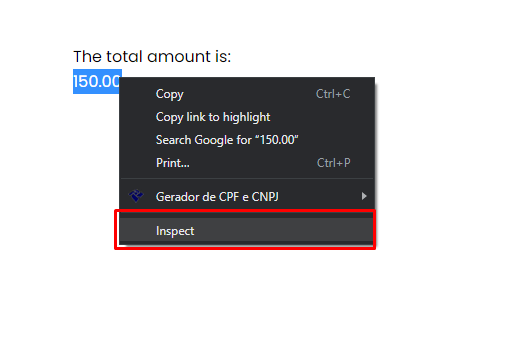
Now, look for the ID field. In this example case, the ID is
TransactionTotal.
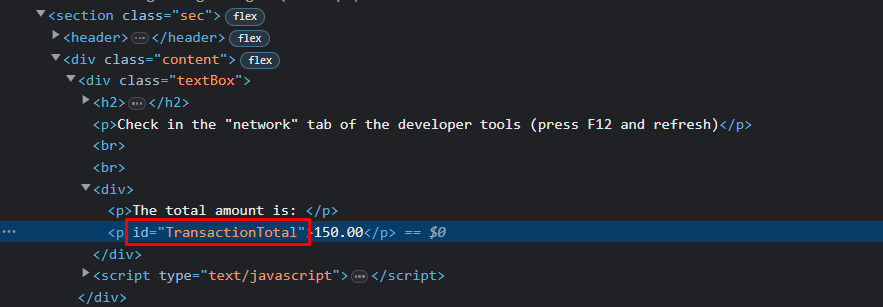
Create a new DOM Element variable in GTM and choose ID as the Selection Method, then pass the ID of the element you want to select.
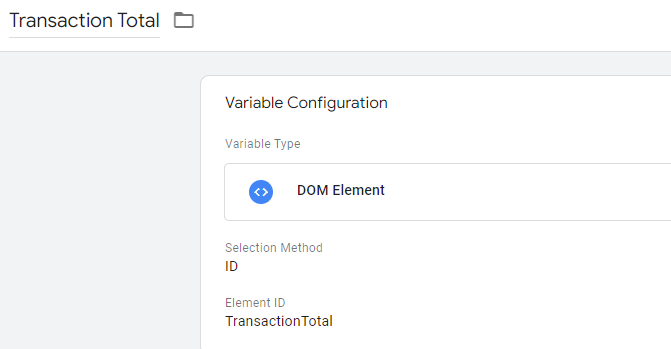
Now you can use this variable in the Awin conversion tag.
Note that if your element doesn’t have an ID, you can still find it via a CSS selector. You can read more about CSS selectors here.