Overview
The process outlined in this guide will allow your site to make use of our Consent Signal Framework. We highly recommend following this process.
Our Consent Signal Framework contains a key property for the AWIN.Tracking object: AdvertiserConsent.
When set, the MasterTag will read its value and, based on this value, decide whether or not to set a Cookie (on the Landing page) and, furthermore, to read the value of the cookies on your order confirmation page.
Note
This article covers the integration of Awin Consent Signals exclusively in GTM. For information on consent handling in general, please see Consent Framework.
⚠️ Consent Signal Disclaimer
If you’re not making use of the consent parameters, then Awin assumes you’ve obtained cookie consent from the website visitor as per the Advertiser Agreement for any Traffic sent to us.
If you indicate that we don’t have consent from the website visitor, we don’t set a cookie on your landing page and we don’t read first-party or process third party cookies on the checkout page, with the only exception to when cookies are considered as strictly necessary as for cashback and loyalty activities.
If any value besides true/false and 1/0 are passed, they will be treated as if no value was specified.
Partner plugins are not covered by Consent Signals. If you are using any partner plugins, then please reach out to the Awin Technical Support team for advice.
GTM - Client-Side Tracking
Important
To make use of the Awin Consent Tag, please ensure that you’ve installed the proper Awin Conversion Tag as outlined in our Google Tag Manager client-side tracking installation guidance.
Step 1 - The Awin Consent Signal template tag
The Awin Consent Signals tag can be imported directly from the GTM Community Template Gallery.
In Google Tag Manager, navigate to Tags.
Click New and choose Discover more tag types in the Community Template Gallery.
.png)
Searching for Awin will reveal the Awin Consent Signals tag.
.png)
Add this tag to your workspace, accepting any applicable notices.
.png)
The plugin is now available for use in your container. Add this tag to your container as you would with another tag and give it an identifiable name (e.g., Awin Consent Signals).
.png)
Step 2 - Tag configuration
There are two types of consent configurations supported by our tag. Please see the relevant section based on your current consent model.
If you do not have consent model in place, please proceed with the Google Consent Mode process.
Using Google Consent Mode parameters
If you are making use of Google Consent Mode, the tag can be configured to listen to one of these Consent Mode parameters. To enable this, check Use Google Consent Mode Parameters.
Then, select the relevant parameter that you’ve allocated to Awin. We recommend using analytics_storage.
.png)
Based on the chosen parameter, a direct mapping between this parameter and the value of the AWIN.Tracking.AdvertiserConsent object is established. For example, if analytics_storage is marked as declined, our tags will act accordingly.
Triggering
We recommend using Initialization - All Pages as the associated trigger for this tag. If you’re unsure if this is the right choice for you or this trigger is missing, please see the Triggering logic section of this guide for more information on the triggering logic, types and creation process.
Your tag should look as shown below before deployment:
.png)
Using a custom consent variable
If you are not using Google Consent Mode, you’ll need to manually map the appropriate Consent Status variable. Ensure that Use Google Consent Mode Parameters is unchecked and you’ll be able to map this variable to your own.
.png)
Important
The allowed values for this field are
true,false,1or0.
If any other values are passed, or the field is left blank, the tag will assume
truewas specified.As per the above, when the user visits your site for the first time, this variable’s default value should be
false. Otherwise, the tag will default totruebefore the consent collection process has taken place.
Triggering
This configuration of the tag requires an additional trigger when compared to the use of Google Consent Mode. This trigger should fire the tag every time the consent status is updated by the user and should be placed in addition to the Initialization trigger.
Please see the Triggering logic section of this guide for more information on the triggering logic, types and creation process.
Your tag should look as below before you deploy any changes:
.png)
Triggering logic
For a correct implementation of our Consent Signals plugin, your Consent Management Platform (CMP) tag should fire before the Consent Signals tag.
We want both of these tags to fire before any other Awin tag.
In summary, your triggering logic should be:
CMP tag → | Awin Consent Signals → | Awin Journey / Conversion Tag |
|---|
For more information on which triggers take precedence over another in GTM, please review Google’s guidance on this topic.
To ensure the correct firing sequence, we advise using the following trigger type, in the specified order:
1. Consent Initialization - For your CMP tag.
2. Initialization - For the Awin Consent tag.
3. Page View - For the Awin MasterTag / Conversion Tag.
Creating an initialization trigger
If you’re attempting to place an initialization trigger on the Awin Consent Tag and find that one is not available, please follow these steps:
In your tag, click on Triggering, then choose the plus sign (+) in the top right corner.
Select Initialization from the list.
.png)
Assign this trigger a recognizable name and apply it to your Awin Consent Signals tag.
Note
In this example, the Advertiser is using Cookiebot CMP, loaded via GTM.
Below is an example of how the tags and their triggers would look like in GTM.
.png)
Remove Consent Mode restriction from Awin tags
After the Consent Signals implementation is complete, the Awin tags are capable of handling consent automatically, therefore you must ensure that no further Consent Mode restrictions apply to the Awin tags, otherwise your implementation may yield incorrect results.
To remove Consent Mode restrictions, open the Awin tags configurations, expand Advanced Settings section, then the Consent Settings section, and ensure that No additional consent required is selected, as seen below.
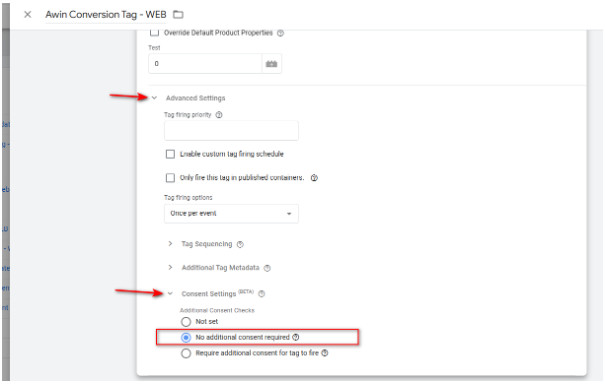
Please note that this apply to all three Awin web tags, i.e. Awin MasterTag, Awin Conversion, and Awin Consent Signals.
GTM - Server-Side Tracking
Introduction
If your area of activity is subject to cookie consent regulations, please follow the instructions below to ensure that your sGTM tracking implementation complies with the relevant guidelines (e.g., the GDPR in the European Union).
Using Google Consent Mode
If you are using Google Consent Mode, you can configure the tag to make use of the Consent Mode parameters, this will enable an automatic mapping between the Consent Mode parameters state and the consent state within the Stape tag. Please see below the steps necessary to enable this.
Stape Data Tag Consent Configuration
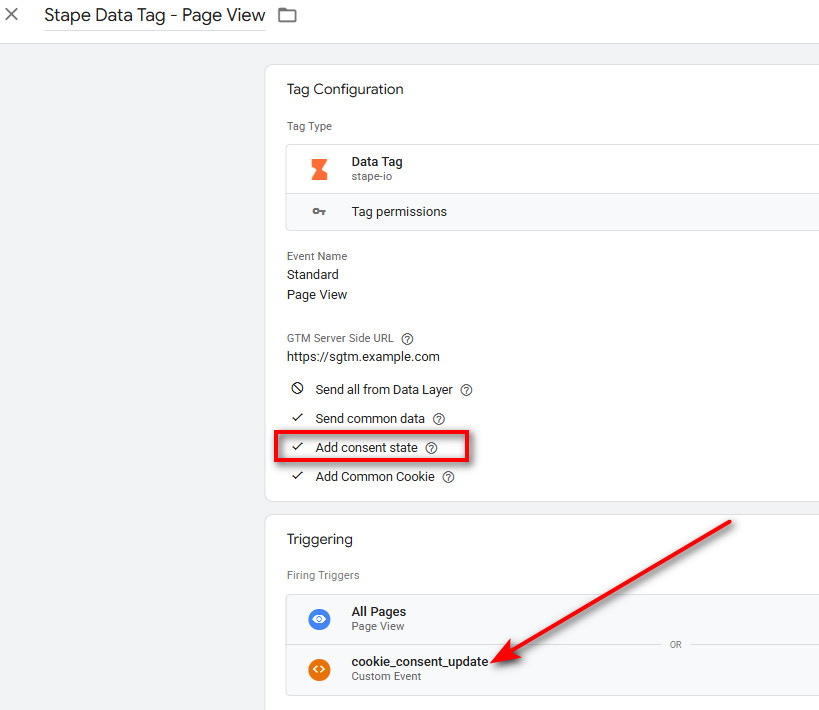
You can use the Stape Data Tag to transmit the consent state from the web container to the server container. This can be achieved by enabling the “Add consent state” setting of the tag. Enabling this setting means that the Data Tag now makes the Consent Mode parameters available in the event data, which the Awin Stape tag can then be configured to read automatically.
Note that the consent configuration should be done for both the page view and purchase Data Tags, see the below section for how to achieve this.
Page View
To configure consent for the page view tag, first enable the “Add consent state” setting, then add a “consent updated” trigger to the tag. This will enable the Data Tag to send a page_view event to the server container whenever the consent state is updated. Below is an example of how the tag should be configured.
Purchase
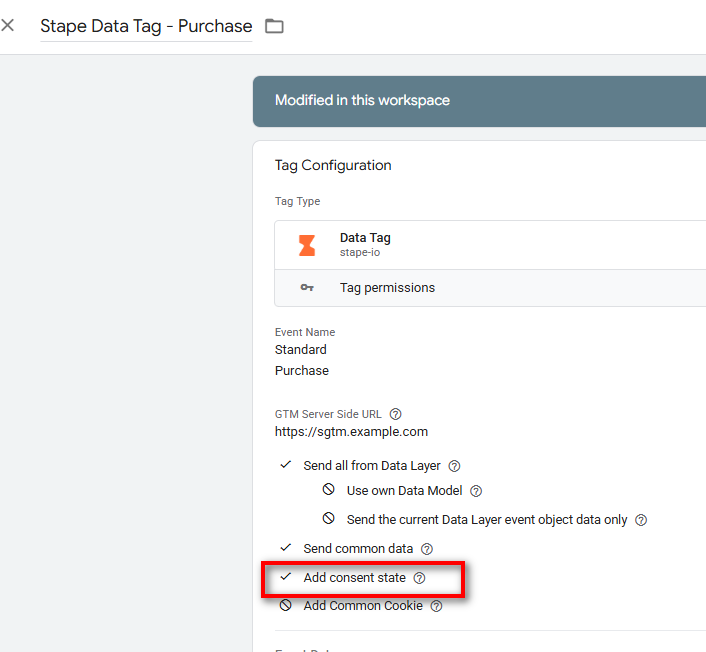
To transmit the consent state via the purchase event, all you need to do is enable the “Add consent state” setting of the purchase Data Tag, as shown below. No additional trigger is required here.
After you’ve configured both Stape Data Tags, you can move on to enabling the automatic mapping in the Stape Awin tag (see “Enable Consent Mode in the Awin Stape Tag” section of this guide).
GA4 Event Consent Configuration
Create “Consent Update" GA4 Event on Web Container
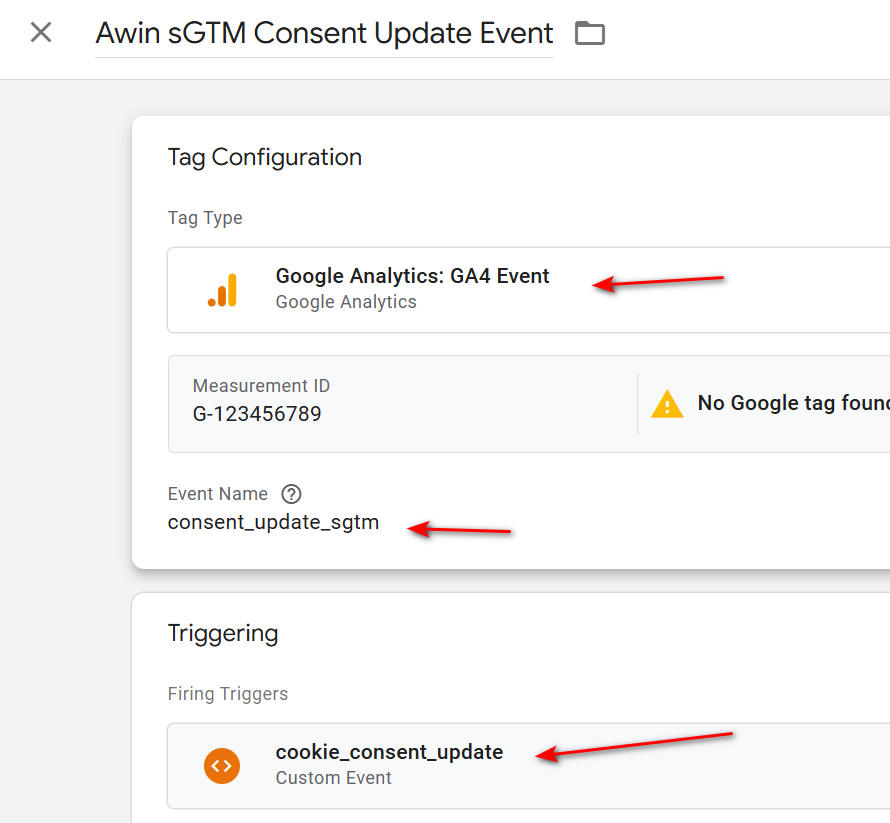
First, you need to inform the server container when the user updates their consent preference, this can be achieved by creating a GA4 custom event on your web container, this event sends a request to the server container when the consent state is updated.
To do this, navigate to the web container and create a GA4 event tag, in the Event Name field add “consent_update_sgtm”, and set the tag to trigger when cookie consent is updated, as shown below.
Map the “Consent Update” Event to the Awin Stape Tag
First, you need to create a new trigger to read the “Consent Update” created by the GA4 tag. To do this, go to the “Triggers” section in the server container, and create a new event as shown below.
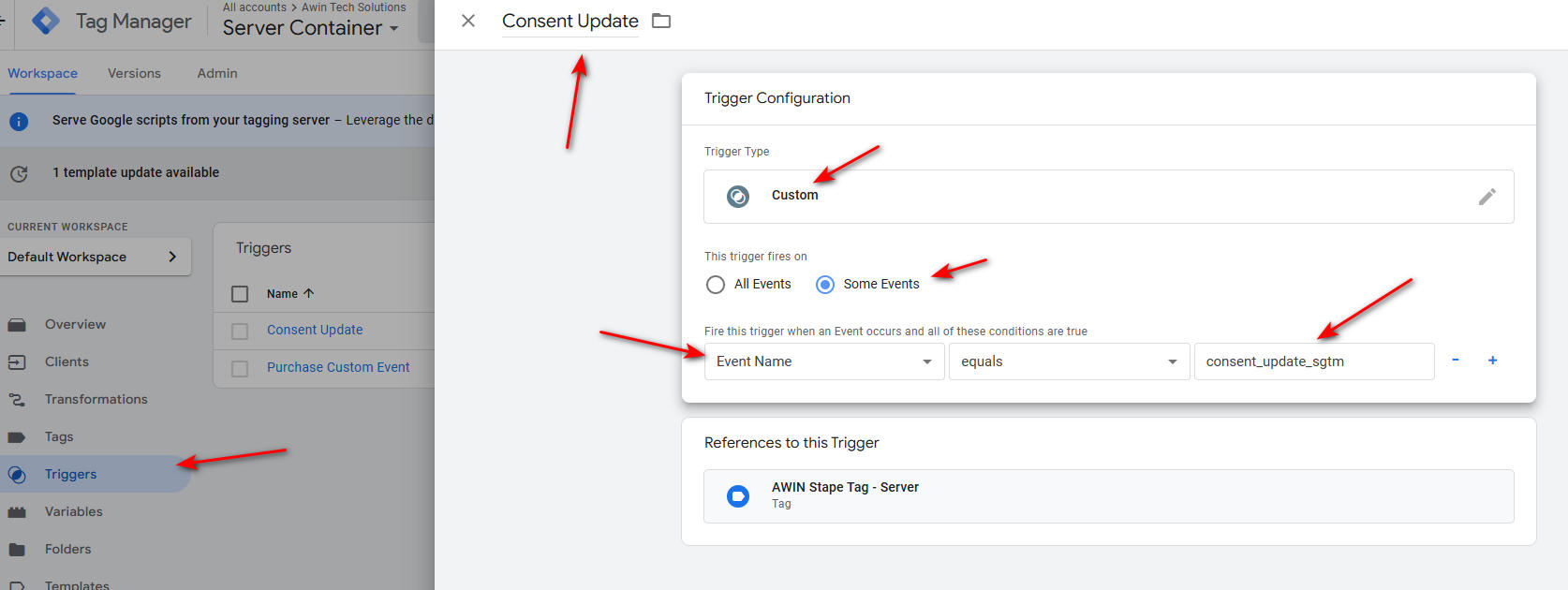
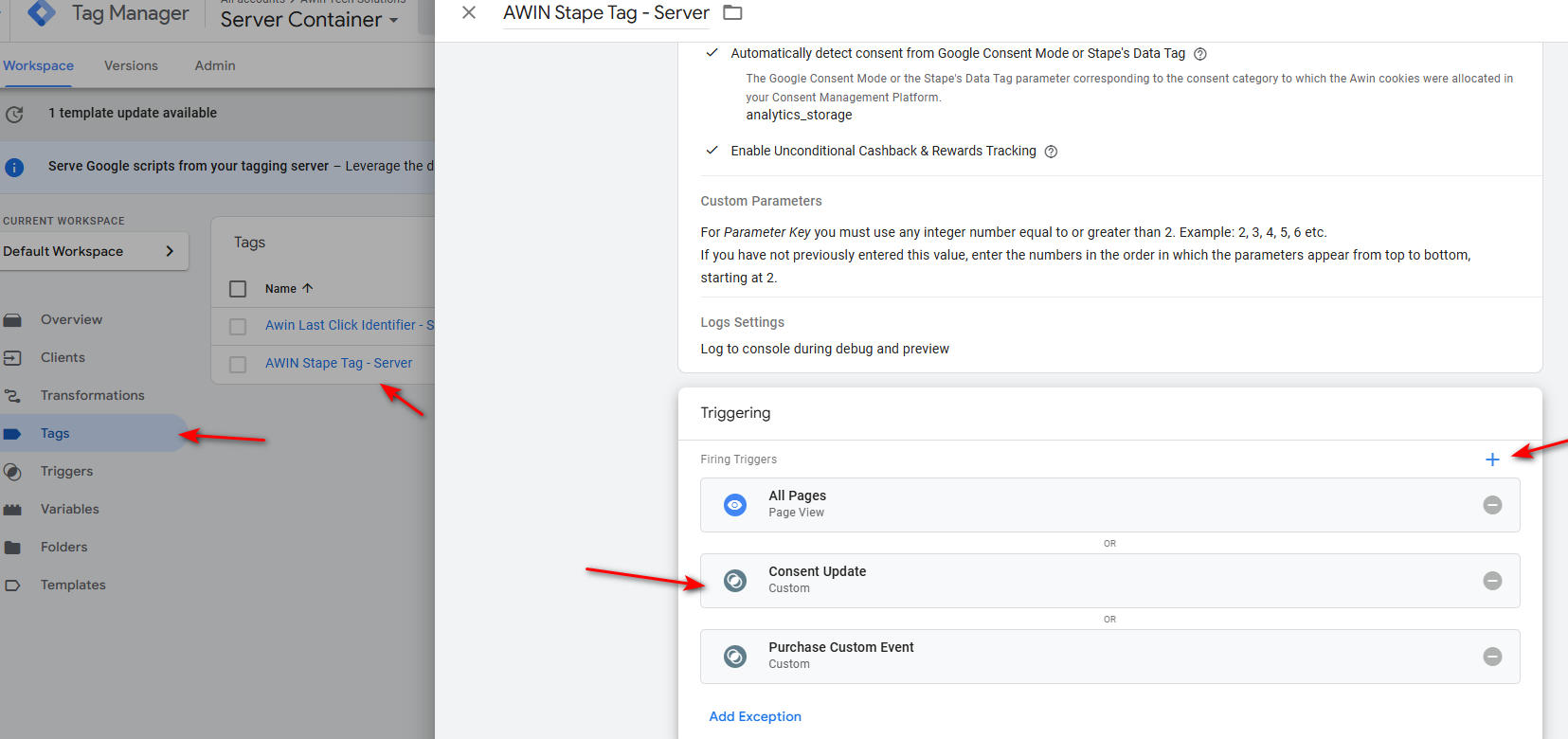
Next, you need to map this event to the Stape tag, to do this, navigate to the “Tags” section, open the Awin Stape tag configuration, scroll down to the “Triggering” section and add the “Consent Update” event that you just created, as shown below.
Create Lookup Table Variable on Server Container
The next step is to create a Lookup table variable on the server container, this variable will enable the Stape tag to trigger whenever a page view event or a consent update event occurs. Configure the variable as shown below.
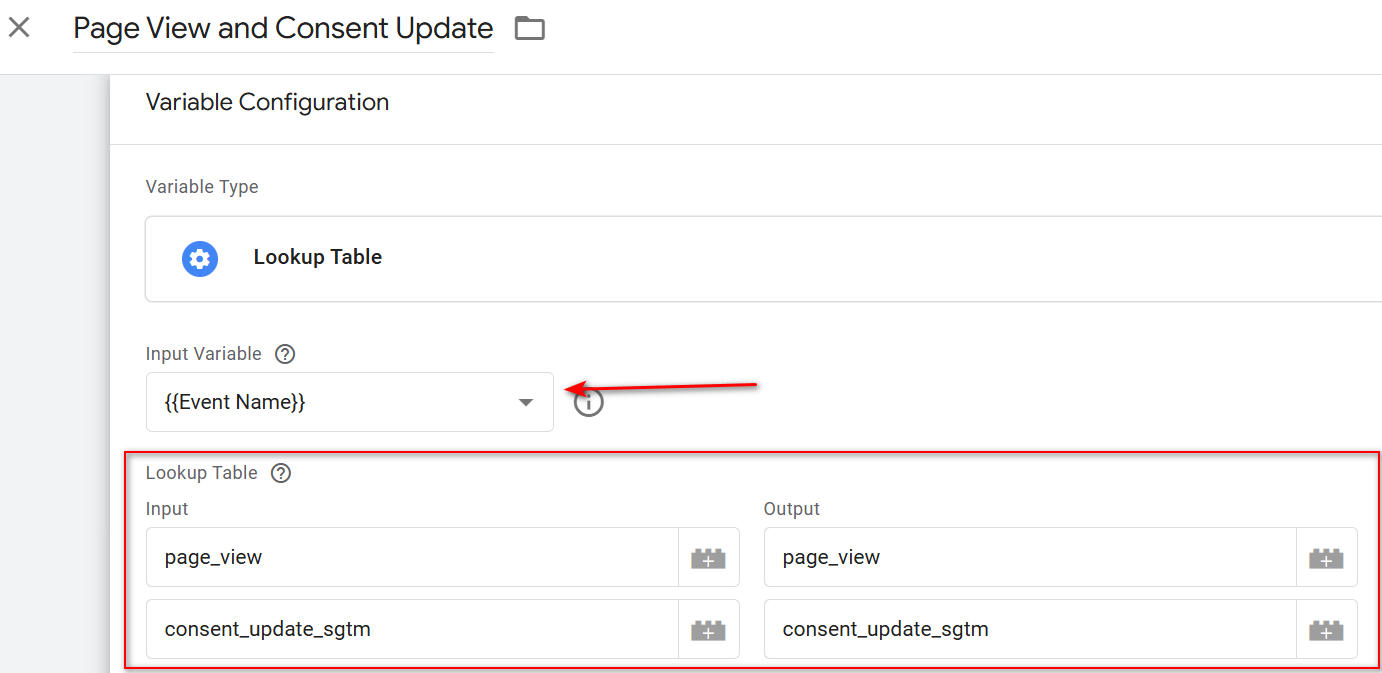
Note: ensure that the both the page_view and consent_update_sgtm event names are input in the Lookup Table.
Map the Lookup Table Variable to the Awin Stape Tag
The next step is to map the variable to the Awin Stape tag. Open the Awin Stape tag and expand the “Event Names” section, then map the variable created at the previous step.
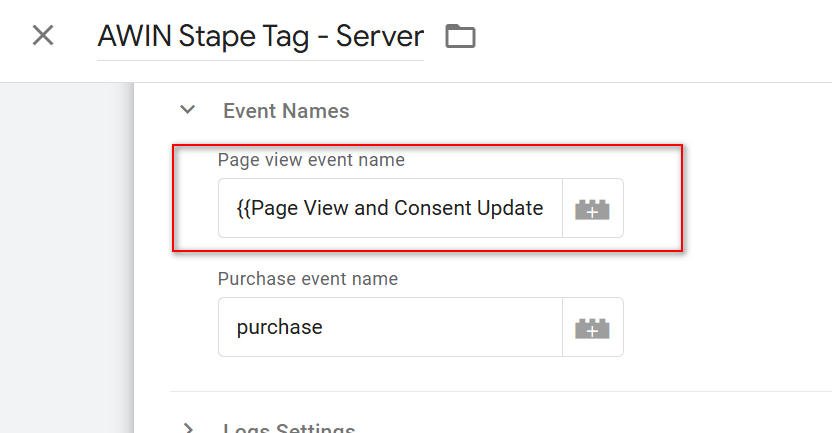
Note, the ”Purchase event name” should remain the same.
Enable Consent Mode in the Awin Stape Tag
The last step is to enable the functionality from the Awin Stape tag. Tick the “Automatically detect consent from Google Consent Mode or Stape's Data Tag” checkbox, and select the consent mode parameter corresponding to the category of the Awin cookie, we recommend using “analytics_storage”, but please ensure that this is the same parameter as the one used for the client-side integration.
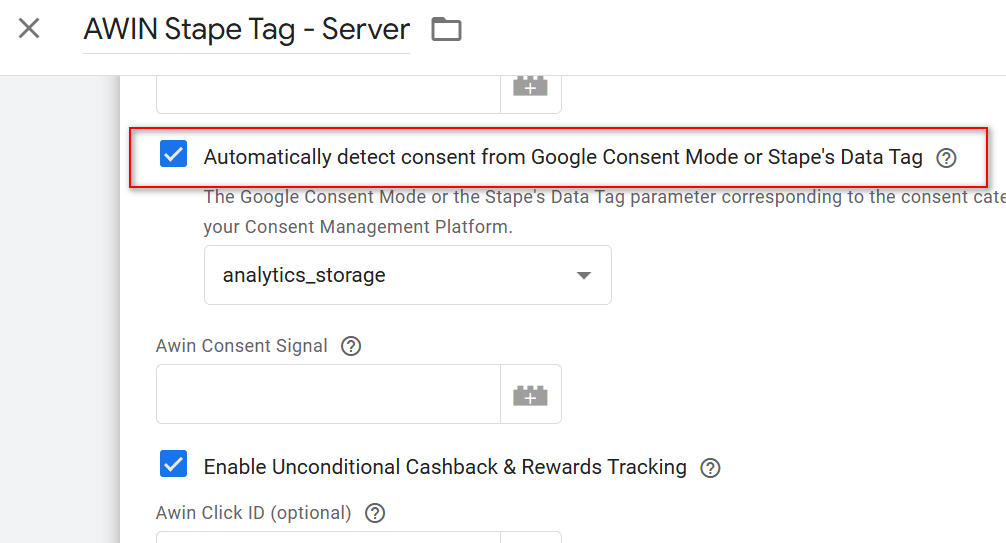
If the privacy regulator in your area of activity recognizes cashback and rewards cookies as “strictly necessary”, then please ensure the “Enable Unconditional Cashback & Rewards Tracking” is also ticked. More details about cashback and rewards tracking can be found here: Cookie consent settings
Using Custom Consent State Variable
You can also inform the tag of the consent state by mapping a variable that stores this to the “Awin Consent Signal” field.
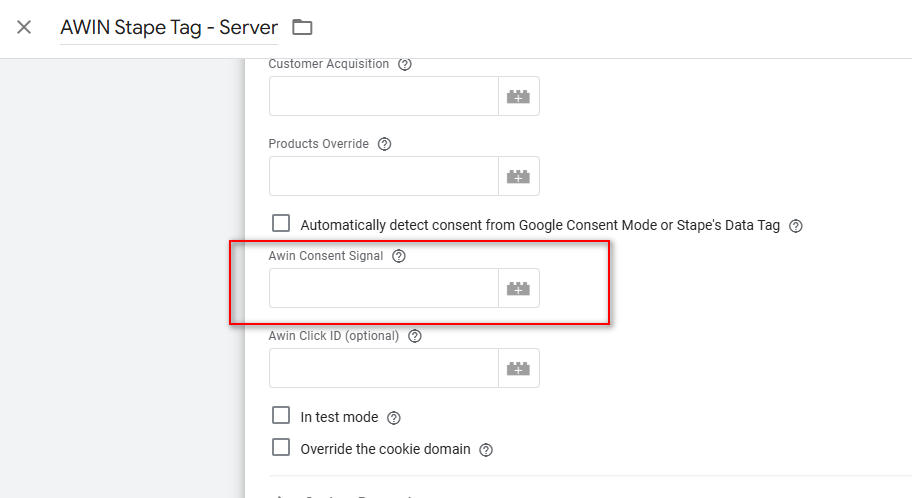
If you do this, you must ensure that the below conditions are fulfilled:
This variable must store the consent state as chosen by the user
Accepted values are: 0,1,true,false. If anything else is specified, then the tag will interpret that as “true”.
If the use is yet to specify their preference, then the field should be set to “false”.
Every time the user changes their consent preference, the variable must be updated accordingly, and the tag must be retriggered using a page_view event.
If you are using the Stape Data Tag, then you can transmit the consent state variable to the server container by mapping it as an Event Data variable in the Data Tag configuration:

Note that this should be done for both the page view and the purchase Data Tags.
Important Note
If you have implemented any of the above 2 solutions, then the Awin Stape tag will handle read the consent state and behave accordingly.
For your implementation to work correctly, if Consent Mode is active on your web container, you must ensure that the Google Tag and GA4 Event tags that are used to send event and Transaction data to the server container are not restricted by Consent Mode.
To do this, go to the web container, open each tag in question, expand the “Advanced Settings” section, then the “Consent Settings” section, and select “No additional consent required”.
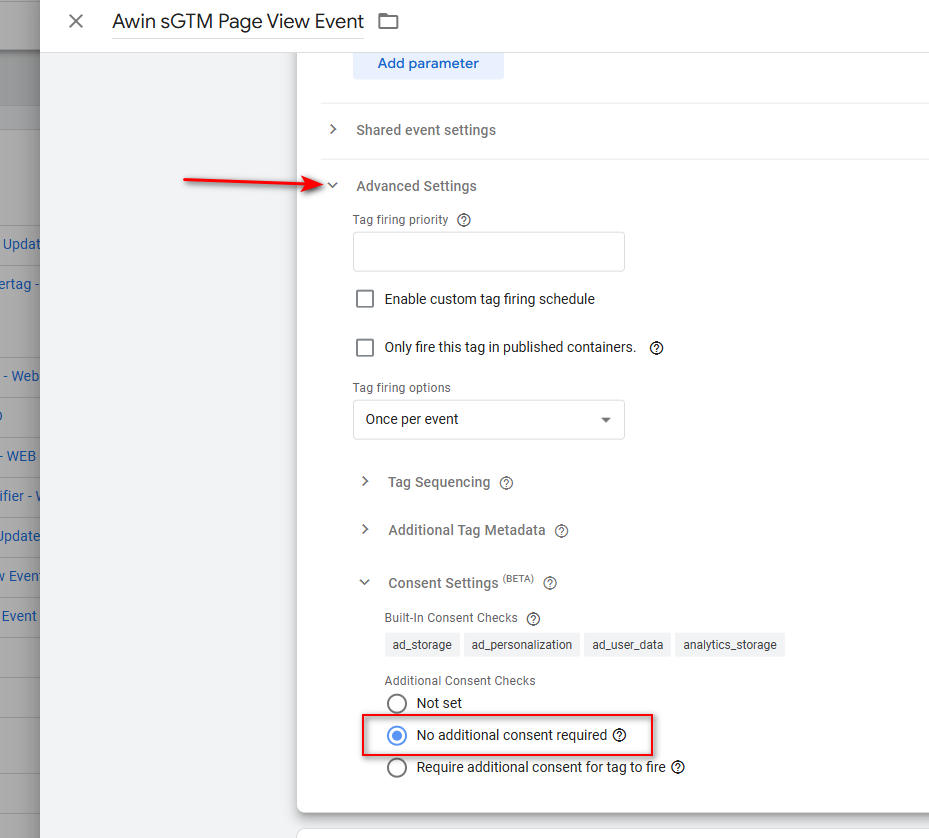
With a full consent implementation, this applies to 3 tags, that is, the Google Tag that sends the page view event to the server container, the GA4 event tag that sends the “consent updated” event, and the GA4 event that send the transaction data and the purchase event.