Note
For information from Adjust, please see here.
Features and limitations
Integration can be done by using the module, where postbacks are set globally or via dynamic setup by appending the Awin postback within a callback parameter in the Adjust click tracker.
Dynamic setup is not suitable for In-App purchase event as order reference can’t be passed through the Awin postback.
Commission Group can be populated with a breakdown i.e.
commissionGroup1:amount1|commissionGroup2:amount2|commissionGroup3:amount3. For more information about using multiple commission groups, please also see our Commission Groups article.
Integrating Awin tracking
Integrating Adjust
Step one: Before you can begin configuration of Adjust and the necessary postbacks, you’ll first need to ensure that the Adjust SDK is implemented in your app and to integrate Partner Parameters – orderId and cg (sale amount is passed through by default). The orderId parameter is to be populated with the order reference.
ADJEvent *event = [ADJEvent eventWithEventToken:@"abc123"];
[event addPartnerParameter:@"orderId" value:@"ord23888882"];
[Adjust trackEvent:event];
Note
In case order reference and commission group are already configured with different parameter names to orderId and cg in Partner Parameters then Parameter Mapping should be used to pass these value as order reference and commission group to Awin.
Step two: Ensure to enable and configure the Awin module.
Under Campaign Lab, select Partners.
Select New partner > Awin. Select Next to move to the next screen.
In the App selection screen, choose the app for which you want to create the link, and enable the integration to share data with Awin.
Select Next.
Enable data sharing
Enable data sharing to activate the integration with Awin. To enable data sharing, enter your Install Commission Group.
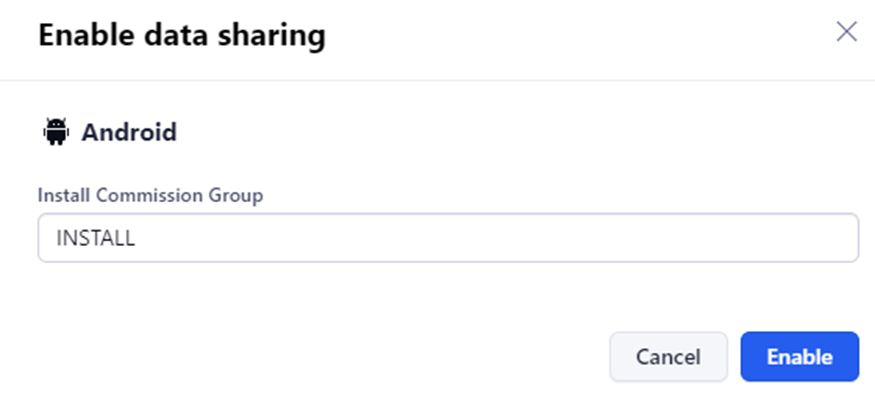
Step three: Create an INSTALL commission group in Awin advertiser platform or ask your Awin contact to assist you and apply the desired commission rate. Enter Install commission group in Awin module in INSTALL Commission Group field (in Adjust configuration page).
Once you enable data sharing with Awin, Adjust automatically sends Awin the following data, by default:
Installs (attributed only)
Event (attributed only)
Set your data sharing options
If you have an app operating on both iOS and Android you can:
Separate data sharing options at the platform-level by selecting Use platform-specific settings.
Set the same data sharing settings for multiple platforms by selecting Use global settings.
Now, under What will be shared by default?, review the activities that Adjust shares with Awin by default.
Installs (attributed only).
Event (attributed only).
Under What sources of data do you want to share? select ‘Only data attributed to Awin (Only data attributed to engagements that include either awin_affid or awin_click_id will be sent via callbacks)’.

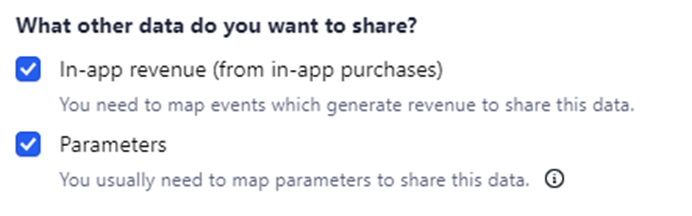
Under What other data do you want to share?, ensure both boxes are checked for revenue and parameter forwarding to be enabled.
Map events
Map events that you want to share to the values that Awin can receive. Data for unmapped events is not shared with Awin.
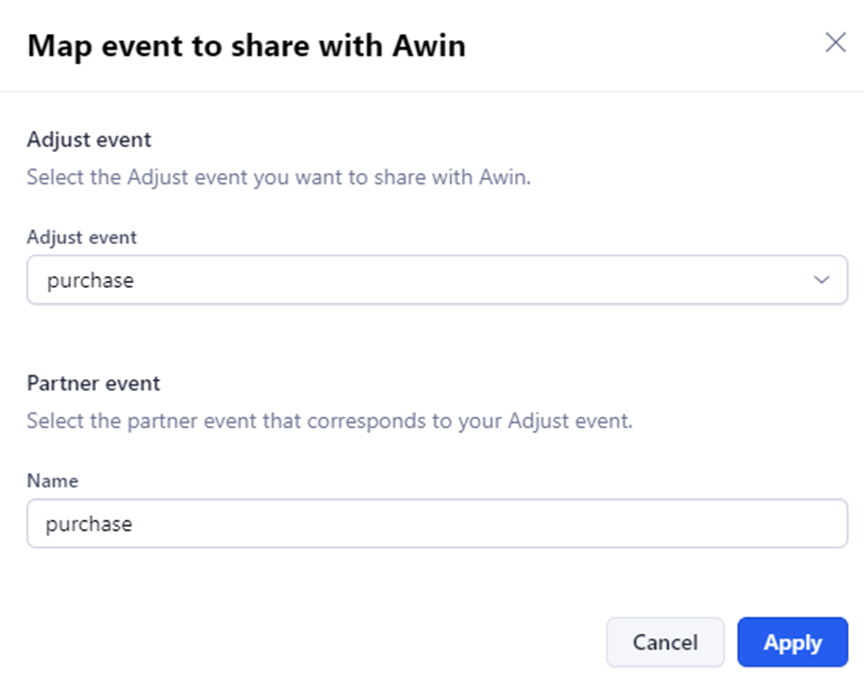
Under Map events, follow these steps to choose the in-app events you want to directly send to Awin.
Select Map event.
In the Adjust event list, choose the Adjust event purchase that you want to share with Awin.
In the Partner event list, choose or enter a custom event name that you want to map the Adjust event to. You might have to map an event to several values.
Select Apply.
Now Awin will receive in-app event data for each of your linked events.
Map parameters
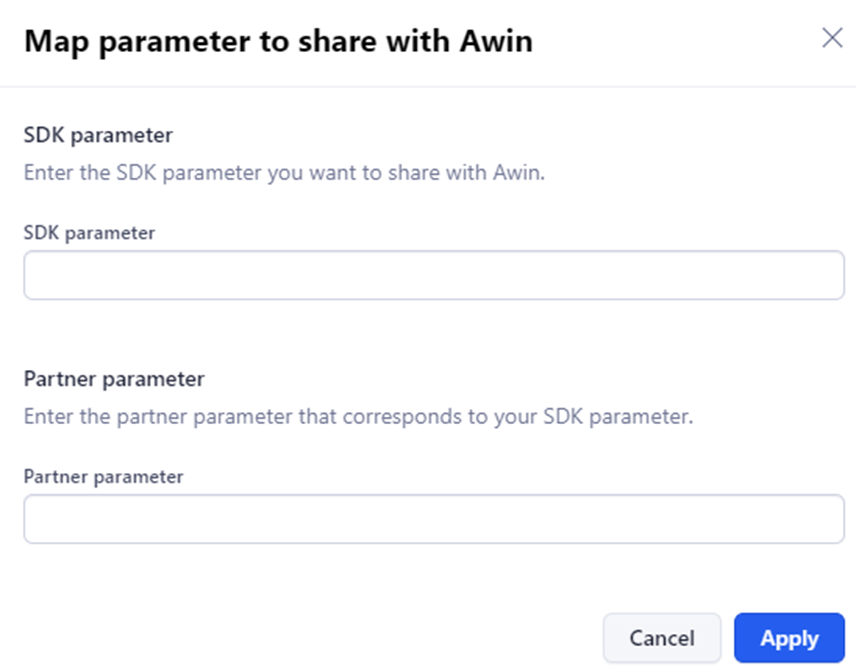
You can forward custom data to Awin by using the Parameter Mapping functionality.
Partner parameters (available in Adjust SDK version 4.0+) let Adjust collect custom data points from your app and send them to Awin. This lets Awin receive custom event details for each of your linked events.
To share partner parameters to Awin, follow these steps.
Set up partner parameters within the Adjust SDK: iOS, Android.
Check the Parameters data sharing checkbox.
Map your events.
Note
If you set up partner parameters within the Adjust SDK without setting up parameter sharing in the dashboard, Adjust forwards the parameters as named in the Adjust SDK.
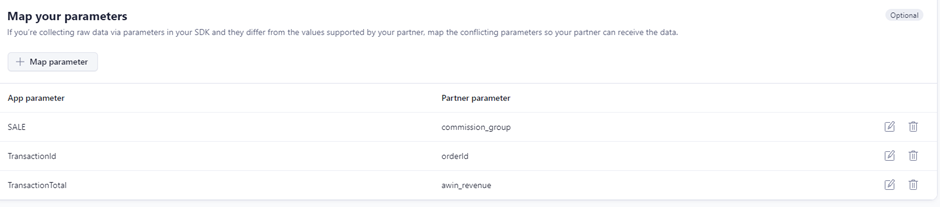
Parameter setup
Order reference can be passed to Awin in two ways:
Advertiser introduces orderId parameter in the SDK within adjust partner parameters and populates it with order reference.
ADJEvent *event = [ADJEvent eventWithEventToken:@"abc123"];
[event addPartnerParameter:@"orderId" value:@"ord23888882"];
[Adjust trackEvent:event];
If the advertiser already has the value in the SDK within adjust partner parameters which should be used as an order reference, he should use Partner Parameter Mapping to pass this value as order reference to Awin.
In the SDK parameter field, enter the name of your Adjust parameter which is populated with Order Reference. In the Partner Parameter field, enter orderId.
Commission group can be passed to Awin in two ways:
Advertiser introduces cg parameter in the SDK within adjust partner parameters and populates it with commissionGroupCode:amount or with a breakdown commissionGroupCode1:amount1|commissionGroupCode2:amount2|commissionGroupCode3:amount3
ADJEvent *event = [ADJEvent eventWithEventToken:@"abc123"];
[event addPartnerParameter:@"cg" value:@"commissionGroupCode:amount"];
[Adjust trackEvent:event];
Advertiser introduces commission_group parameter in the SDK within adjust partner parameters and populates it with commissionGroupCode
ADJEvent *event = [ADJEvent eventWithEventToken:@"abc123"];
[event addPartnerParameter:@"commission_group" value:@"commissionGroupCode"];
[Adjust trackEvent:event];
If both cg and commission_group are present in partner parameters, cg will have priority over commission_group and cg will be used to populate parts parameter.
If advertiser already has the parameter within adjust partner parameters which contains commission group code, he should use Partner Parameter Mapping to pass the commission group code.
Amount can be passed to Awin in the following way:
Advertiser introduces awin_revenue parameter in the SDK within adjust partner parameters and populates it with amount.
ADJEvent *event = [ADJEvent eventWithEventToken:@"abc123"];
[event addPartnerParameter:@"awin_revenue" value:@"33.99"];
[Adjust trackEvent:event];
If advertiser already has the value in the SDK within adjust partner parameters which should be used as amount, he should use Partner Parameter Mapping to pass this value as amount to Awin.
In the SDK parameter field, enter the name of your Adjust parameter which is populated with Amount. In the Partner Parameter field, enter awin_revenue.
Custom parameters can be passed to Awin in the following way:
Advertiser introduces, as required, custom3-29 and/or custom31-50 in the SDK within adjust partner parameters and populates it with the custom data desired for each parameter.
ADJEvent *event = [ADJEvent eventWithEventToken:@"abc123"];
[event addPartnerParameter:@"custom10" value:@"new user"];
[event addPartnerParameter:@"custom15" value:@"domestic purchase"];
[Adjust trackEvent:event];
Each of these parameters is mapped to the corresponding custom parameter in the Awin postback, for example the custom10 partner parameter is mapped to p10 parameter of the Awin postback parmeters. custom1, custom2, and custom30 are reserved and they should not be mapped if the data is already available in partner parameters under a different name/variable, then you can use Parameter Mapping to map this data to the corresponding custom parameter, for example, to map a variable called userType you can do the following mapping userType -> custom10.
Partner specific
Awin’s integration allows you to send a set of predefined parameters. If you attach any of these parameters to an event in your Adjust SDK, these will be forwarded to Awin. Below is a list of the defined parameters that Awin accepts:
Parameter key > Value
orderId > order reference (mandatory on revenue events)
cg > commission group breakdown (mandatory on revenue events)
vc > voucher code
custom[3,29] > custom parameter [3,29]
commission_group > commission group (mandatory on revenue events)
Please attach the mandatory parameters to the revenue event(s) in your adjust SDK in order to correctly measure the event(s) on the Awin platform.
Example implementation (with Android SDK)
In your Adjust SDK implementation, when you setup these partner parameters:
AdjustEvent adjustEvent = new AdjustEvent("abc123");
adjustEvent.addPartnerParameter("cg", "AABBCC");
adjustEvent.addPartnerParameter("commission_group", "DDEEFF");
Adjust.trackEvent(adjustEvent);
Then if Adjust attributes an activity to an engagement with an Awin Aff ID, we will forward the partner parameter setup as cg to Awin (i.e. cg=AABBCC).
If no Awin Aff ID is found, we will search for a partner parameter setup as commission_group or if not present, fallback to cg and send the partner parameter (i.e. commission_group=DDEEFF; fallback to cg=AABBCC).
List of all parameters forwarded to Awin
Awin requires Adjust to send the following parameters (data points) with your callbacks:
Placeholder | Information |
|---|---|
| Adjust device ID (all platforms) |
| Original ISO 4217 currency code sent from Adjust SDK |
| Event name, as set in the Dashboard |
| Device operating system |
| Custom partner parameters collected by the Adjust SDK or S2S request and transmitted to third party providers via postbacks |
| Revenue, as sent from Adjust SDK, in whole currency units |
| Attributed click timestamp |
Tracking link generation
Step by step guide is available here: https://help.adjust.com/en/tracking/attribution/tracker-urls/advanced-tracker-setup
Under Campaign Lab – Partners – Click +New Link button
App Selection: Select the desired App
Link Structure: Provide a name for the Link and click Next – Note the Campaign Parameters will be automatically populated for Awin Trackers.
User Destinations - Here you can configure deeplinking, redirect and fallback URLs:
Define a deep link: If the app is installed, send users to a specific app screen.
Send to App Store (Default)
Provide In-App destination for user to land on
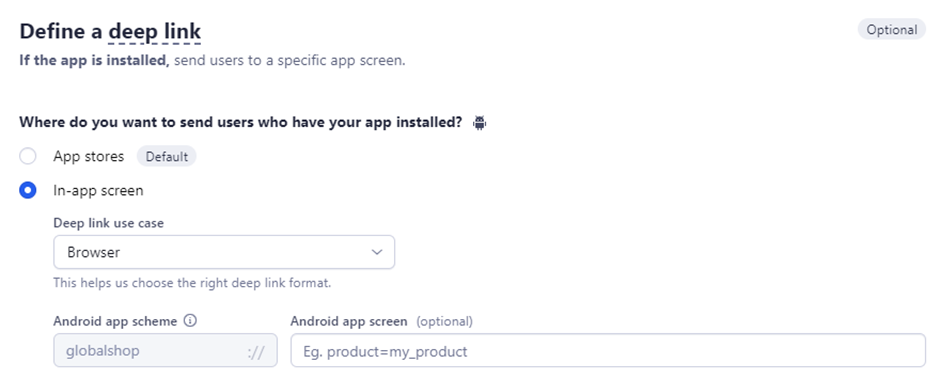
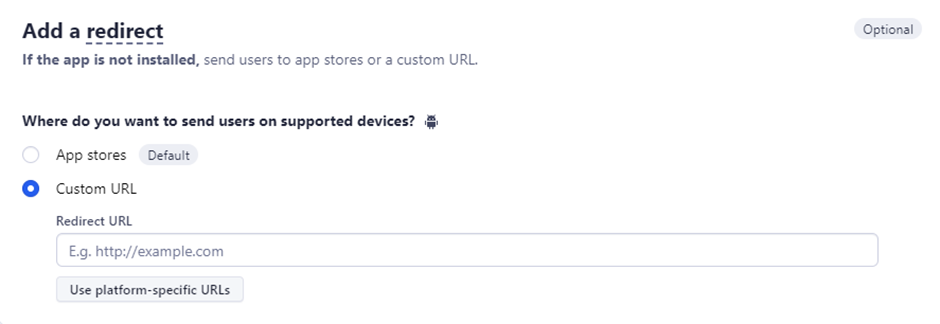
Add a redirect: If the app is not installed, send users to app stores or a custom URL.
App Store (Default)
Custom URL (If user’s should be redirected to m-site)
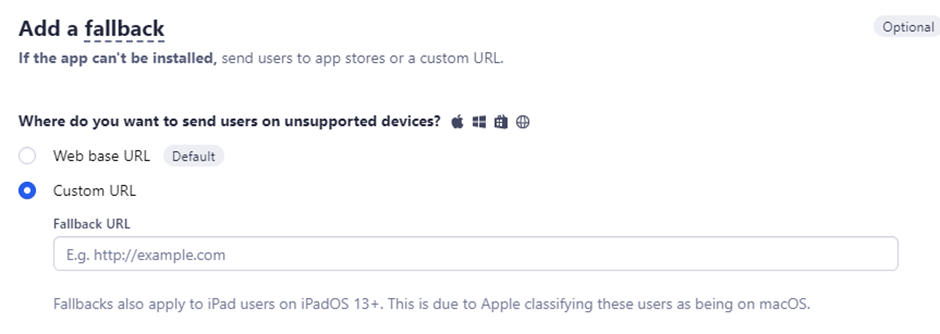
Add a fallback: If the app can't be installed, send users to app stores or a custom URL.
Web base URL (Default)
Custom URL
Attribution settings - configure attribution for new and existing users
New user attribution: Choose how to attribute different engagements from new users for this link. Changes here will override app-level attribution settings.
Clicks
Attribution window 7 days (time to install)
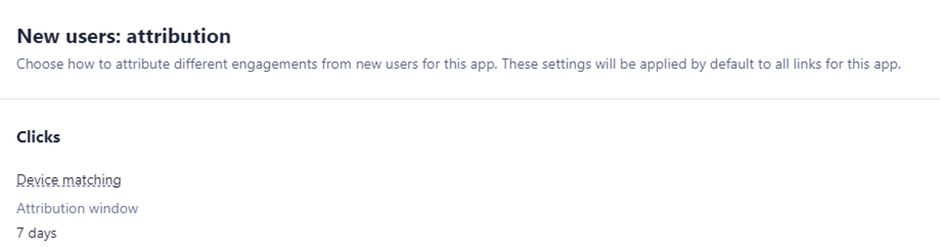
Existing user reattribution: Choose how to attribute different engagements from existing users for this link. Changes here will override app-level attribution settings.
Clicks
Inactivity period should be set to 0.
Reattribution Window should match Awin cookie length (30 days).
See also: https://help.adjust.com/en/article/attribution-windows
Setup review - review the configuration and select Create Link to generate the Adjust tracker
Once tracking link is generated you must add always two Awin specific parameters:
&awin_click_id=!!!awc!!!&awin_program_code={{awin_advertiser_id}}
More information can be found at https://help.adjust.com/en/article/attribution-settings-ad-network
To create a multi-platform links for apps separated by OS, create separate links for each platform, and then merge them into a multi-platform link. Find more information here: https://help.adjust.com/en/article/multi-platform-links
Create 2 separate links for your different app platforms.
Platform 1 link:
https://app.adjust.com/abc123Platform 2 link:
https://app.adjust.com/xyz456
Copy the link token that you created for the second platform and paste it after the underscore.
https://app.adjust.com/abc123_xyz456
Example multi platform link
https://app.adjust.com/abc123_xyz456?campaign=Affiliates&adgroup=!!!dateDAY!!!&creative=!!!affid!!!&awin_click_id=!!!awc!!!&awin_program_code=1001&deep_link=exampleshop-com%3A%2F%2Fhome&redirect=!!!redirectURL!!!&fallback=!!!redirectURL!!!
(replace example progid 1001 inside the parameter name awin_program_code with your specific Awin progid)
Install
https://www.awin1.com/sread.php?tt=ss&tv=2&type=ai&merchant={{awin_program_code}}&amount=1&ref={adid}&parts={installCID}:1&testmode=0&cks={{awin_click_id}}&p2={os_name}&p30=adjust
Lead
https://www.awin1.com/sread.php?tt=ss&tv=2&type=ap&merchant={{awin_program_code}}&amount=1&ref={adid}_{event_name}&parts={labelFromAdJustDashBoard}:1&testmode=0&cks={{awin_click_id}}&p2={os_name}
In-app purchase
https://www.awin1.com/sread.php?tt=ss&tv=2&type=ap&merchant={{awin_program_code}}&amount={{revenue_float}}&ref={{orderId}}&parts={{cg}}&testmode=0&cks={{awin_click_id}}&cr={currency}&vc={vc}&p1={adid}&p2={os_name}&p30=adjust
Dynamic setup
Adjust allows to dynamically attach Awin postback URLs to Adjust tracking URLs instead of using global postbacks defined via the Awin module. As a result, postback can be easily amended.
Advertiser should simply add following parameters to Adjust tracking url:
install_callback=URL_ENCODED_AWIN_POSTBACK event_callback_{replaceWithAdjustEventToken}=URL_ENCODED_AWIN_POSTBACK
Install
install_callback=URL_ENCODED_AWIN_POSTBACK
install_callback=https%3A%2F%2Fwww.awin1.com%2Fsread.php%3Ftt%3Dss%26tv%3D2%26type%3Dai%26merchant%3D1001%26amount%3D1%26ref%3D%7Badid%7D%26parts%3DAPPINST%3A1%26testmode%3D0%26cks%3D!!!awc!!!%26p1%3D%7Bcountry%7D%26p2%3D%7Bpartner_parameters%7D%26p3%3D!!!awc!!!%26p4%3DINSTALL%26p5%3D%7Bos_name%7D%26p6%3D%7Bgps_adid_md5%7D%26p7%3D%7Bidfa_md5%7D%26p8%3D%7Badid%7D%26p9%3D%7Bdevice_type%7D%26p30%3Dadjust
(replace example progid 1001 inside the parameter name merchant with your specific Awin progid)
Event
event_callback_{replaceWithAdjustEventToken}=URL_ENCODED_AWIN_POSTBACK
Event Token is gathered from Adjust Dashboard
&event_callback_me4jf0=https%3A%2F%2Fwww.awin1.com%2Fsread.php%3Ftt%3Dss%26tv%3D2%26type%3Dap%26merchant%3D1001%26amount%3D1%26ref%3D%7Badid%7D_Leadout_%7Bengagement_time%7D%26parts%3DLEADOUT%3A1%26testmode%3D0%26cks%3D!!!awc!!!%26p1%3D%7Bcountry%7D%26p2%3D%7Bpartner_parameters%7D%26p3%3D!!!awc!!!%26p4%3DLEADOUT%26p5%3D%7Bos_name%7D%26p6%3D%7Bgps_adid_md5%7D%26p7%3D%7Bidfa_md5%7D%26p8%3D%7Badid%7D%26p9%3D%7Bdevice_type%7D%26p30%3Dadjust
(replace example progid 1001 inside the parameter name merchant with your specific Awin progid)
Example dynamic tracking link
https://app.adjust.com/abc123_xyz456?campaign=Affiliates&adgroup=!!!dateDAY!!!&creative=!!!affid!!!&install_callback=https%3A%2F%2Fwww.awin1.com%2Fsread.php%3Ftt%3Dss%26tv%3D2%26type%3Dai%26merchant%3D1001%26amount%3D1%26ref%3D%7Badid%7D%26parts%3DAPPINST%3A1%26testmode%3D0%26cks%3D!!!awc!!!%26p1%3D%7Bcountry%7D%26p2%3D%7Bpartner_parameters%7D%26p3%3D!!!awc!!!%26p4%3DINSTALL%26p5%3D%7Bos_name%7D%26p6%3D%7Bgps_adid_md5%7D%26p7%3D%7Bidfa_md5%7D%26p8%3D%7Badid%7D%26p9%3D%7Bdevice_type%7D%26p30%3Dadjust&event_callback_me4jf0=https%3A%2F%2Fwww.awin1.com%2Fsread.php%3Ftt%3Dss%26tv%3D2%26type%3Dap%26merchant%3D1001%26amount%3D1%26ref%3D%7Badid%7D_Leadout_%7Bengagement_time%7D%26parts%3DLEADOUT%3A1%26testmode%3D0%26cks%3D!!!awc!!!%26p1%3D%7Bcountry%7D%26p2%3D%7Bpartner_parameters%7D%26p3%3D!!!awc!!!%26p4%3DLEADOUT%26p5%3D%7Bos_name%7D%26p6%3D%7Bgps_adid_md5%7D%26p7%3D%7Bidfa_md5%7D%26p8%3D%7Badid%7D%26p9%3D%7Bdevice_type%7D%26p30%3Dadjust&fallback=!!!redirectURL!!!(replace example progid 1001 with your specific Awin progid)
If advertiser decides to proceed with dynamic setup, Awin module on Adjust should be disabled and Awin specific parameters awin_click_id, awin_program_code should not be included in Adjust tracking url. Both parameters are included within Awin postback.
Awin postback should be encoded (Awin placeholders containing !!! should not be encoded).
List of Adjust placeholders which can be used: https://partners.adjust.com/placeholders/ (see column Install, In-app event). Dynamic setup is not recommendable for in-app purchase event as order reference {orderId} can’t be passed within Awin postback since this information is not avaliable upon click.
Note
Adjust will send to Awin the {currency} placeholder which is the original ISO 4217 currency code sent from Adjust SDK.
Mobile prefix ui configuration
Adjust tracking URL can be enabled as a mobile prefix for all or selected publishers.
See the Awin platform: https://ui.awin.com/tracking-settings/en/awin/advertiser/1001/app-tracking
(replace example progid 1001 with your specific Awin progid)
Mobile prefix example:
https://app.adjust.com/abc123_xyz456?campaign=Affiliates&adgroup=!!!dateDAY!!!&creative=!!!affid!!!&awin_click_id=!!!awc!!!&awin_program_code=1001&deep_link=!!!redirectURL!!!&redirect=!!!redirectURL!!!
(replace example progid 1001 with your specific Awin progid)
Note
Editing for Mobile prefix in the platform is restricted (Awin staff only).
Required parameters to be added to the Adjust tracking link:
Parameter | Requirements |
|---|---|
awin_click_id=!!!awc!!! | AWC (mandatory) |
awin_program_code={awin_advertiser_id} | Awin advertiser ID (AID or AwinProgID) (mandatory) |
!!!affid!!! | Adjust campaign structure parameters to be populated with Awin Publisher ID (PID) (mandatory) |
!!!dateDAY!!! | Mandatory - Adjust campaign structure parameters to be populated with !!!dateDAY!! to receive the first click of the day from the last publisher (touchpoint) (mandatory) |
deep_link | Allow to deeplink to a specific page within the app. URI must be encoded |
redirect=!!!redirectURL!!! | Fallback to a specific URL when the app is not installed. URL must be encoded |
Deeplinking
AWIN supports a URI scheme but doesn’t support the handling of iOS Universal links and Android app link methods of deep linking. This is due to the link wrapping. It applies to any link used within AWIN. To deep link with Adjust tracking link via AWIN, you will need to setup the Adjust tracking link URL with a URI scheme. Preferably, your app developer should configure the SDK to support HTTP URL as a deep link value.
If the URI scheme is filled in the deep_link parameter, the user will consistently be directed to the static page within the app. However, in cases where the app isn't installed, Safari will display an invalid address error. This method does not support dynamic deep linking. Alternatively, if the app developer implements handling for HTTP URLs by converting them into URI schemes that the app can understand (e.g., making them app-readable product destinations), users will be directed to the relevant product page within the app. Notably, this approach avoids displaying an invalid address error in Safari when the app is not installed.
Attribution
Adjust attributes based on the first click of the last partner.
Set attribution metrics
Re-attribution window should match the Awin cookie length.
Inactivity period should be set to 0.
In order to receive first click of the day from the last publisher, the Advertiser should populate Adjust campaign structure parameters with the following Awin placeholders
!!!id!!!and !!!dateDAY!!!
Postbacks
Install postback
https://www.awin1.com/sread.php?tt=ss&tv=2&type=ai&merchant={{awin_program_code}}&amount=1&ref={adid}&parts={installCID}:1&testmode=0&cks={{awin_click_id}}&p1={adid}&p2={os_name}&p30=adjustIn-app purchase postback
https://www.awin1.com/sread.php?tt=ss&tv=2&type=ap&merchant={{awin_program_code}}&amount={{revenue_float}}&ref={{orderId}}&parts={{cg}}&testmode=0&cks={{awin_click_id}}&cr={currency}&vc={vc}&p1={adid}&p2={os_name}&p30=adjustTesting your app tracking
Once you’ve completed the installation of your app tracking, please get in touch with your assigned Awin technical point of contact for more information on how to test your tracking.
For a more general overview of the testing process, please review our Testing your integration article.