---
title: "Salesforce Commerce Cloud"
slug: "salesforce-commerce-cloud"
updated: 2026-09-23T15:06:48Z
published: 2026-09-23T15:06:48Z
canonical: "help.awin.com/salesforce-commerce-cloud"
---
> ## Documentation Index
> Fetch the complete documentation index at: https://help.awin.com/llms.txt
> Use this file to discover all available pages before exploring further.
# Salesforce Commerce Cloud
> [!NOTE]
> Compatibility notice
>
> This cartridge is built to support the latest version of SFRA, which was 7.0.0 at the time of development. The recommended Node version for compiling scripts is 18.19.
## Supported tracking types and features
Method and feature support notes are based on the latest available cartridge version. If a feature is not present on your shop, please ensure you have updated the Awin cartridge.
Tracking methodsAdditional features
All of these tracking methods are included within the Salesforce Commerce Cloud cartridge, meaning full compliance with our Awin Tracking Policy. To review the Awin Tracking Policy, please reach out to your Awin point-of-contact.
✅ **MasterTag**
✅ **Conversion tag**
✅ **Fallback conversion pixel**
✅ **Server-to-server (S2S)**
✅ **Product-level tracking (PLT)**
✅ **Deduplication**
✅ **Customer acquisition**
✅ **Consent signals**
## Installation and configuration
> [!NOTE]
> Note
>
> Current Version: 1.0.0 (compatible with all versions up to SFRA 7.0, Node.js v18.19.
The most efficient way to integrate Awin’s tracking with your site is to use our provided Salesforce Commerce Cloud cartridge, available to download below:
[](https://cdn.document360.io/ec9ead62-8ecc-46ef-aac7-9b0a9081b40b/Images/Documentation/tracking-salesforce-commerce-main.zip)tracking-salesforce-commerce-main14.03 MB[](https://cdn.document360.io/ec9ead62-8ecc-46ef-aac7-9b0a9081b40b/Images/Documentation/tracking-salesforce-commerce-main.zip)
After you’ve downloaded and installed the cartridge, you’ll need to set your Advertiser ID. If you’re unsure, you should have received this ID from your assigned integrator or you can find it in the platform under **Program profile**.
The following Syte Integration tasks are included within the LINK cartridge. Before you proceed with the setup, first determine which version your code is running on, SFRA. Once you identify the version, then follow the steps accordingly.
### Cartridge installation
**Step one:** Clone the GitHub repository.
**Step two:** Navigate to **awin-tracking-sfra/awin**.
**Step three:** Run `npm install` to install all local dependencies (SFRA has been tested with Node v18.19).
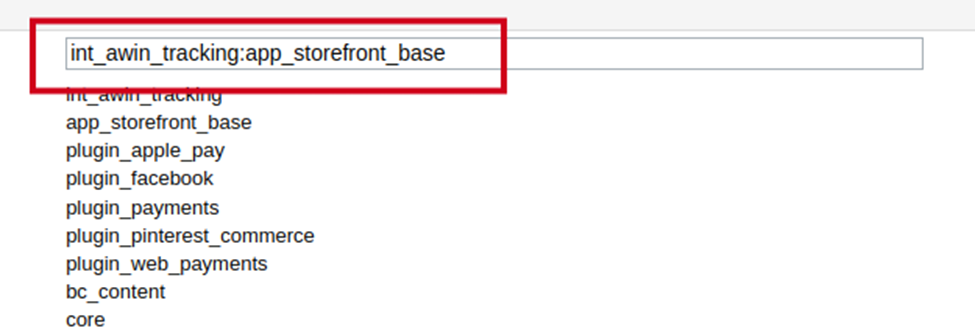
**Step four:** Configure the cartridge path by navigating to **Administration > Sites >** **Manage Sites > Site** - **Settings**.
**SFRA**: `int_awin_tracking:app_storefront_base`
### Data import
Import the following metadata files into BM using the given paths. Use **Awin-Meta-Data** folder in the **awin-tracking-sfra** folder and import this data into your sandbox (this zip file contains metadata and services).
**Import metadata:** The cartridge uses some site preference for which the Site Preference Object has been extended. Execute the below steps to import the supporting metadata.
1. Navigate to **Administration > Site Development > Import & Export > Meta Data Import**.
2. Upload file **system-objecttype-extensions** which will be find inside **Awin-Meta-Data > meta system-objecttype-extensions.xml**.
**Import services:** The cartridge uses one service for sending some information to the Awin server.
1. BM Path: **Administration** **> Operations > Import & Export** **>** **Services Import**.
2. Upload file **services** which will be find inside **Awin-Meta-Data >** **services.xml**.
### Configuration
#### Configure custom preferences
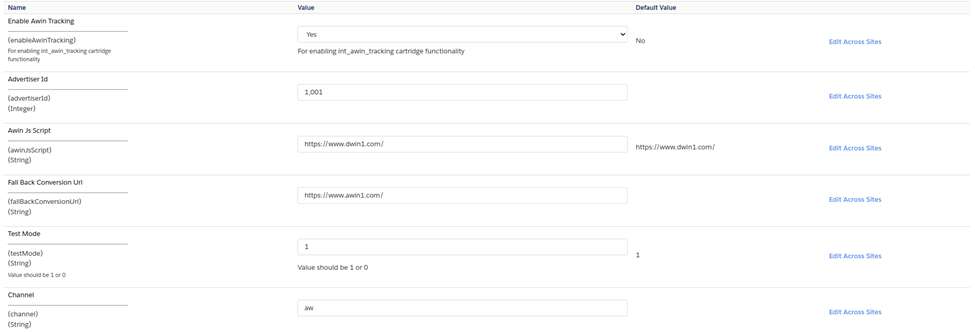
To configure the site preferences, navigate to **Merchant Tools** **> Site Preferences > Custom Site Preferences** **> Awin Tracking Configurations**.
Following table provides details for each configuration.
| Site preference | Description |
| --- | --- |
| Enable Awin Tracking | Use this preference to enable or disable the Awin integration on the Storefront. |
| Advertiser Id | Must be replaced by the applicable Awin advertiser program ID. Consult your account contact or assigned integrator if in any doubt. |
| Awin Js Script | The **Journey Tag**, or **MasterTag** as we call it at Awin, is a JavaScript library containing all functions required for our tracking solution. |
| Fall Back Conversion Url | This is the fallback conversion pixel URL used in the codebase to concatenate additional parameters with this URL. |
| Test Mode | Should be populated with "0" when tracking is in live mode or alternatively "1" if in test mode. When set to the latter, the incoming tracking requests will not be processed. |
| Channel | Should be replaced with the name of the channel that is deemed as last click referrer. `aw` should always be utilized for Awin. |
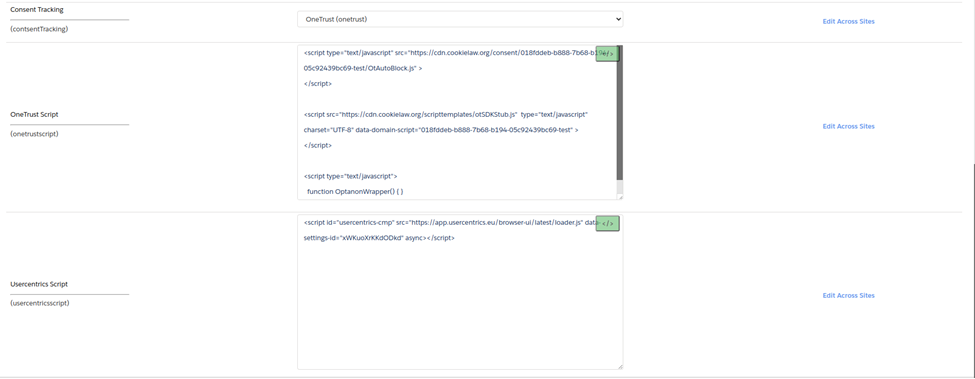
| Consent Tracking | Select a consent option from the ones mentioned: Default, OneTrust, or Usercentrics. If none is selected, no consent will be shown on the storefront. |
| OneTrust Script | Ensure that the OneTrust script is included to display OneTrust consent on the storefront. This script is responsible for enabling and making OneTrust functional. ```plaintext ``` ```plaintext ``` |
| Usercentrics Script | Ensure that the Usercentrics script is included to display Usercentrics consent on the storefront. This script is responsible for enabling and making Usercentrics functional. ```plaintext ``` |
| Awin OneTrust Group | Ensure that the awinOneTrustGroup includes OneTrust group ID. When you enable OneTrust consent for the storefront, based on the user’s consent selection (either accept or reject), that ID will be matched. If the ID matches, then Awin will be set to *true*; otherwise, it will be *false*. Example: C0004 |
| Awin Usercentrics Service | Ensure that the awinUsercentricsService includes the Usercentrics service. When you enable Usercentrics consent for the storefront, based on the user’s consent selection (either accept or reject), that ID will be matched. If the ID matches, then Awin will be set to *true*; otherwise, it will be *false*. Example: Marketing |
### Custom code
#### Include template manually
If you are using the hook mentioned below and it serves any purpose in your code in the **htmlHead.isml** file, you will need to do some manual work. Navigate to **cartridges/int_awin_tracking/hooks.json** and remove the **hooks.json** file.
| ${dw.system.HookMgr.callHook('app.template.htmlHead', 'htmlHead', pdict) \|\| ''} |
| --- |
After removing the **hooks.json** file, add the following line of code at the end of the **htmlHead.isml** file. You will find this file at the following path: **cartridge/templates/default/common/htmlHead.isml**.
| |
| --- |
Note: If the hook mentioned above is not used anywhere in your cartridge and isn’t serving any purpose in your code, then it’s okay; you don’t need to remove the **hooks.json** file. Our functionality will still work fine.
#### Controllers and models
ISML templates, controllers and models have been extended and won’t require any custom change. Provided below are references in case some customization is required.
**ISML templates**
- cartridges/int_awin_tracking/cartridge/templates/default/common/layout/awinHead.isml
**Controllers**
- cartridges\int_syte_sfra_changes\cartridge\controllers\AwinServerToServer.js
- cartridges\int_syte_sfra_changes\cartridge\controllers\Order.js
**Models**
- cartridges/int_awin_tracking/cartridge/models/productLineItem/orderLineItem.js
- cartridges/int_awin_tracking/cartridge/models/order.js
### Custom logs
To view custom logs, you’ll need to do a bit of setup. Navigate to: **Administration > Operations > Custom Log Settings**. In the **Log Category**, enter *Awin-Tracking*. Choose the desired **Log Level**, then click the **Add** button.
### Comprehensive tracking
The Awin cartridge includes our [hybrid tracking](https://resources.awin.com/product/en-gb-hybrid-tracking/) solution and its associated benefits. The cartridge will trigger the tracking tags on order confirmation pages and the tracking tags will include all aspects of tracking. This includes our client-side conversion tag, fallback image pixel, server-to-server tracking, and the Awin MasterTag on all pages.
#### Tracking features
DeduplicationCustomer acquisitionConsentProduct-level tracking (PLT)
By default, the Awin cartridge includes a deduplication mechanism, to ensure that only one partner is credited for a sale, preventing multiple commissions for the same transaction. For more information about deduplication itself, please find the information in our [deduplication](/advertisers/docs/de-duplication) guide.
The cartridge utilizes the `source` query parameter from the landing page URL and passes this value along to the channel parameter of our tracking request for deduplication purposes.
It’s important to note that only the `source` query parameter will be used for deduplication, not the more commonly used `utm_source` parameter. You should ensure that the source parameter is correctly configured for your program. Your Awin point of contact can assist you with changes to this configuration.
Additionally, the App creates a cookie named `source` to store the value of the `source` parameter. This value will update accordingly each time the value of this parameter changes in the URL.
> [!WARNING]
> Important
>
> If you are configuring other channels, please ensure that they’re reporting to the `source` query parameter with the proper value. (e.g. *source=email, source=fb, source=na*, etc.)
Customer acquisition information is included in the tracking of the cartridge, and this is appended to the tracking tags. The customer acquisition parameter will tell us whether a customer was a new, or returning customer.
The customer acquisition information in the tracking can eventually be used to set commission rules on Awin’s side, distinguishing between new and returning customers with each their applicable commission rates. Please refer to our [commission flexibility guide](/advertisers/docs/commission-flexibility) for further information.
By default consent is supported with the Awin cartridge for Salesforce Commerce Cloud. Following the instructions above, if you selected **Default Consent Tracking** from **Site Preferences** then the consent shown on the storefront will be the default SFCC consent, and with the **Usercentrics** and **OneTrust** the consent shown on the storefront will be the respective consent frameworks.
To ensure that the consent mechanism is working properly, testing is crucial, so please follow the specific instructions under the **Testing your tracking** section below. If anything is unclear or further information is needed regarding the consent handling, please reach out to your Awin technical point of contact.
For more information, please also see [consent framework](/developers/docs/consent-framework).
[Product-level tracking](/developers/docs/product-level-tracking-2) (PLT) information is sent via the Salesforce Commerce Cloud tracking and follows the default format of an Awin PLT dataset:
```plaintext
AW:P|{{advertiserId}}|{{orderReference}}|{{productId}}|{{productName}}|{{productItemPrice}}|{{productQuantity}}|{{productSku}}|{{commissionGroupCode}}|{{productCategory}}
```
For more information on how to set up commission structures based on product level data, please see our [Commission by product](/developers/docs/commission-by-product) guide.
## Testing your tracking
Please see our article on [testing your integration](/developers/docs/testing-your-integration) for general testing instructions. Below is an overview of the three consent frameworks and how to test them. For any further guidance and information, please reach out to your Awin technical point of contact.
### Default consent
If you selected **Default Consent Tracking** from **Site Prefrences** then the consent shown on the storefront will be the default SFCC consent. Ensure that the consent tracking is working properly and that consent is being sent to Awin.
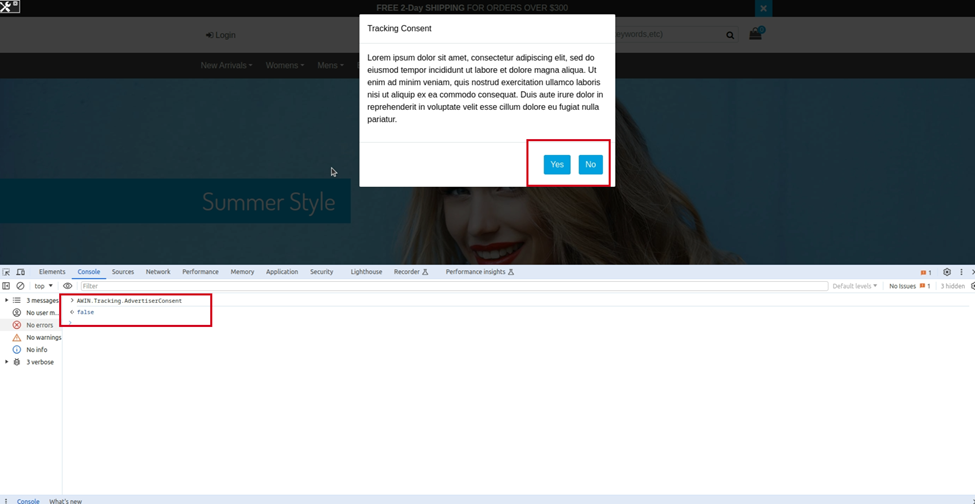
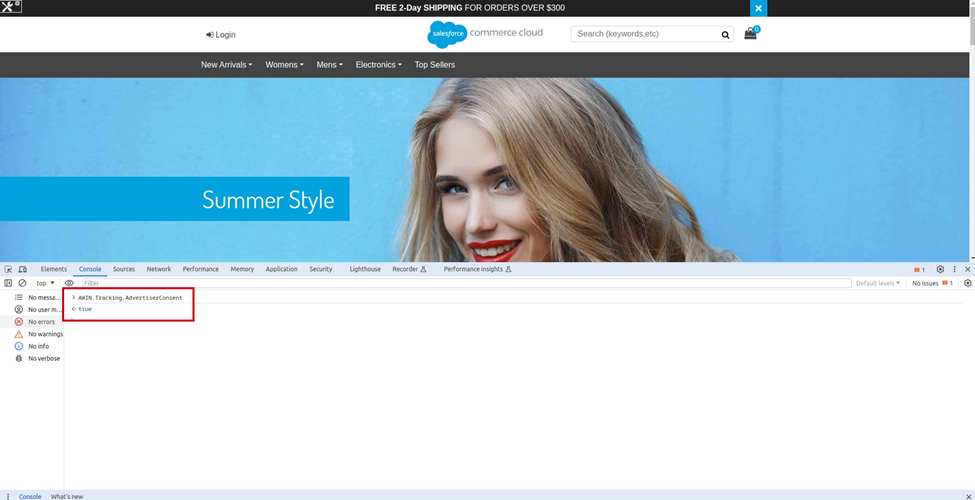
First, clear the cache, or open a new incognito window. Then paste the landing page URL; you should see a prompt window, as shown in the example below. Open the console and paste this code: `AWIN.Tracking.AdvertiserConsent`. You will see a *true* or *false* value, depending on the consent selection. **Note**: The initial value will be *false*.
### OneTrust consent
If you selected **OneTrust** consent tracking from **Site Preferences**, the consent shown on the storefront will be the OneTrust consent. If you click **Accept All Cookies**, then `AdvertiserConsent` will be set to *True*. If you click on the settings of the cookies and toggle selective consent, there is a category ID behind each toggle (e.g., C0004). During the save cookies setting, that ID will be matched with the one configured in site preferences for awinOneTrustGroup ID. If it matches, then Awin will be set to *True*.
For testing, you can paste the following line in the console: `AWIN.Tracking.AdvertiserConsent`. You will see *True* if accepted; otherwise, it will be set to *False*.
### Usercentrics consent
If you selected **Usercentrics** consent tracking from **Site Preferences**, the consent shown on the storefront will be the Usercentrics consent. If you click **Accept All**, then `AdvertiserConsent` will be set to *True*. If you toggle selective consent services there is a service ID behind each toggle (e.g., Marketing). During the save cookies setting, that ID will be matched with the one configured in site preferences for awinUsercentricsService ID. If it matches, then Awin will be set to *True*. For testing, you can paste the following line in the console: `AWIN.Tracking.AdvertiserConsent`. You will see *True* if accepted; otherwise, it will be set to *False*.