Overview
Creatives are promotional material that you can share with your partners to help drive sales.
Awin offers the ability to provide creatives to partners through a creative bank, under My Creative. This repository can be used to enhance campaigns and partners performance by enabling them to access approved creative assets to support promotional placements.
Entries to this repository can be hidden or tagged, and have a description and ID for easy identification. Assets can also be made visible to only certain partners, if you have creative that feature a specific partner-reference/campaign focus/attributable voucher code.
The Awin platform supports the following types of creative:
Banners and images
Email templates
Forms
HTML 5 banners
Search widgets
Text links
Other, such as application forms, top picks, active scrollers, and surveys
Banner and image creatives
Banners are key in digital advertising, helping with branding and increasing engagement. A well-designed banner can help you boost sales.
For banners and images, we recommend that you add at least one promotional creative and one generic creative to your program.
Choosing the right size
Choosing the right banner size ensures that your ads display properly across various platforms.
Here are the recommended sizes for both standard and mobile formats:
Standard format | Dimensions (px) |
|---|---|
Banner | 468×60 |
Leaderboard | 728×90 |
Medium rectangle | 300×250 |
Wide skyscraper | 160×600 |
Skyscraper | 120×600 |
Small square | 200×200 |
Square | 250×250 |
Half page | 300×600 |
Mobile format | Dimensions (px) |
|---|---|
Smartphone wide banner | 320×50 |
Smartphone static banner | 300×50 |
Medium rectangle | 300×250 |
Smartphone large banner | 320×100 |
Feature phone small banner | 120×20 |
Feature phone medium banner | 168×28 |
Feature phone large banner | 216×36 |
Designing your banner
Creating an appealing banner requires careful attention to several design elements to make sure it gets noticed and encourages engagement.
Here’s how to get it right:
File size: Keep your banner file size under 488 KB. Smaller files load faster and improve user experience, reducing the chance that viewers will leave because of slow loading times. We support GIF, JPG/JPEG and PNG files, or you can also create HTML5 banners or dynamic banners.
Animation: Animated banners can be more engaging than static ones, but they need to be balanced. Ensure the animation is smooth and not too fast or slow. The goal is to attract attention without causing distraction or making the content difficult to follow.
Copy: The text should be clear, concise, and compelling. Focus on the benefits your product or service offers rather than just listing features. Emphasize how your product will improve the user’s life, and keep your wording brief and impactful.
Call to Action (CTA): A strong CTA is crucial for driving clicks. Your CTA should be direct and specific, such as Click here, Shop now, Learn more, or Get started. Ensure it stands out visually and guides users towards the desired action.
Brand consistency: Match your banner’s colors with your brand’s palette to reinforce brand identity. Consistent branding makes your ads more recognizable.
Images: Use high-quality images that resonate with your audience and accurately represent your product or service. Avoid generic stock photos when possible, as unique images are more likely to draw attention.
Logo: Consider including your brand’s logo on your banner. This helps build brand recognition and ensures that users associate the banner with your brand.
Adding a banner or image creative to your program
In the platform navigate to Toolbox > Links & Tools > My Creative.
Click Add Creative.
Select the Image tab.
Do one of the following:
To upload a file from your computer, select Upload your creative then click Browse.
To use a file from the internet, select Provide creative source URL, then provide the address of the image.
Note
We strongly recommend that you upload a file from your computer, rather than use a file from the internet. This gives partners greater protection against images being changed or deleted, because files you upload are hosted directly on the Awin platform.
Complete the fields in the Creative Details section:
Title: Provide a name to identify your creative.
Description: Add a clear description to help partners find your creative.
Tag: Select an existing tag, or create a new tag for your creative.
Destination URL: Provide the destination URL for when a user clicks the banner.
Alt Text: Provide the text that appears when a user hovers over the creative (it’s important for website accessibility as well as improving SEO).
For Visible to box choose which partners you want to be able to access and use the creative. By default this is set to All Publishers.
To save the creative and make it available to partners, click Save.
Text link creatives
Text links are a great way of promoting your products and are frequently used by all partner types.
Text links allow you to predefine the alt text and messages that appear as part of the text link.
For example:
Click here for Books and Magazines!
If you are looking for lawnmowers you should check out B&Q. Click here for more info.
Free of charge, low APR % UK loans finance service? Powerful & professional Internet free loan searching service finds low interest finance & completes loan application forms on your behalf! Click here to visit loanspage.co.uk.
Adding a text link creative to your program
In the platform navigate to Toolbox > Links & Tools > My Creative.
Click Add Creative.
Select the HTML tab.
From the Type dropdown menu, select Text Link.
Complete the fields in the Creative Details section:
Title: Provide a name to identify your creative.
Description: Add a clear description to help partners find your creative.
Tag: Select an existing tag, or create a new tag for your creative.
Link text: Provide the text that you want users to see.
Destination URL: Provide the destination URL for when a user clicks the text.
For Visible to box choose which partners you want to be able to access and use the creative. By default this is set to All Publishers.
To save the creative and make it available to partners, click Save.
HTML creatives
For the following banner types, use HTML:
Email templates
Forms
Search widgets
Other, such as application forms, top picks, active scrollers, and surveys
Adding an HTML creative to your program
In the platform navigate to Toolbox > Links & Tools > My Creative.
Click Add Creative.
Select the HTML tab.
From the Type dropdown menu, select one of the following options:
Email Template
Form
HTML 5 Banner
Other
Search Widget
Complete the fields in the Creative Details section:
Title: Provide a name to identify your creative.
Description: Add a clear description to help partners find your creative.
Tag: Select an existing tag, or create a new tag for your creative.
HTML: Provide the HTML for your creative.
Dimensions: Select the appropriate dimensions from the dropdown menu.
Click Refresh preview to update the preview of your creative.
For Visible to box choose which partners you want to be able to access and use the creative. By default this is set to All Publishers.
To save the creative and make it available to partners, click Save.
Batch uploading creatives
The Batch Upload Creative feature in the My Creative section allows you to add or update image banners and text link creatives in bulk using a CSV file.
Note
Batch upload works for banners and text links only.
If you only want to remove creatives, you should download a CSV of your list of creatives, make the appropriate changes, and then upload the updated CSV. This avoids unnecessary or unwanted updates to all other existing banners and text links.
In the platform navigate to Toolbox > Links & Tools > My Creative.
Click Batch Upload Creative.
To download the CSV file that contains a list of you current image banners and text links, in the Add new or edit Creative section, click the CSV file link in the instructions.
In your preferred CSV editing software, modify and save the CSV file with your required changes.
You can edit the following fields:
status: The status for the creative. 0 means the creative is hidden and 1 that it is active.
creative type: The type of asset. Add 3 for an image banner and 5 for a text link.
creative title: The title displayed to partners in the My Creative directory.
creative description: The description displayed to partners in the My Creative directory. Include relevant keywords for better visibility in searches.
creative tag: A tag to group creative.
visible to publishers: The visibility of the creative for specific partners. To make the creative visible to all partners leave this field blank. To make the creative visible to specific partners add each corresponding Publisher ID, separated by commas, e.g., 12345,23456,34567.
link text: Specific to the text link creative type.
destination url: The URL where users will be directed.
alt text: A short description appearing on mouseover or when the image is not displayed. This field is specific to image banners.
image source: URL of the hosted image or the filename and extension if saved locally.
Notes
The ID field cannot be edited and is automatically populated with the ID for the existing creative. If you are adding a new creative, leave this field blank.
When updating existing creatives, all images must have the same dimensions as the original.
If your image is locally saved, you can find the image source filename and extension within the folder settings.
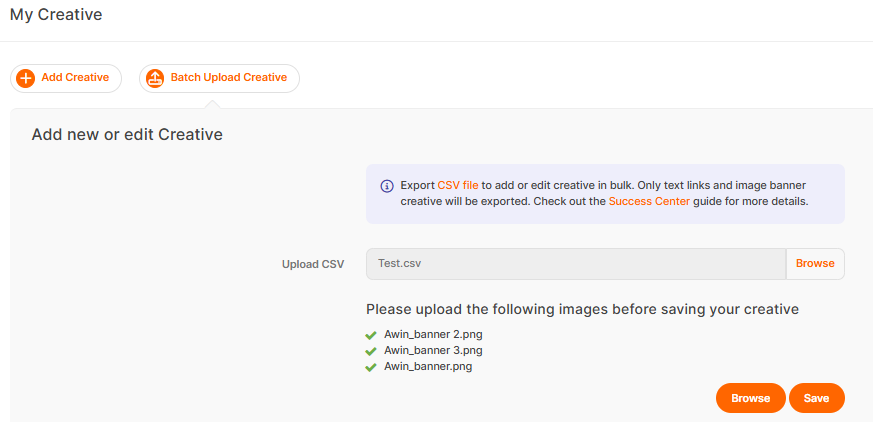
Click Browse to locate the CSV file on your computer and upload to Awin for processing.
Uploading locally stored images
If uploading locally saved images:
After uploading the CSV, you will be prompted to upload the image files.
Click Browse and select multiple images at once.
Confirm and save your creative.
Verifying upload status
Successful updates will appear in the creative directory.
Failed updates will generate an error message and a downloadable CSV file with errors.
Correct any errors in the CSV file and re-upload it.
Searching for an existing creative
In the platform navigate to Toolbox > Links & Tools > My Creative.
Enter your search terms in the following boxes:
Tag: Search creatives by existing tags. Scroll through a list of tags or enter a search term to find a specific tag. The field updates automatically.
Type: Search creatives by type.
Dimensions: Search creatives by format or dimensions.
ID: Search for specific creatives by ID.
To update the table with your search results click Filter.
Click Reset at any time to remove your search parameters and reset the contents of the table.
Editing creative
In the platform navigate to Toolbox > Links & Tools > My Creative.
In the list of creatives, locate the creative you want to modify.
Click the corresponding pencil icon to show the details for the creative.
Make any changes as necessary.
To apply your changes click Save.
Hiding a creative from partners
If you want to remove an old creative so that it’s no longer visible to your partners, you need to hide it.
In the platform navigate to Toolbox > Links & Tools > My Creative.
From the list of creatives, locate the creative you want to hide.
Click the corresponding eye icon. A confirmation message appears.
To confirm your action click OK.
Hiding a creative will not remove it from your partners websites. If you want them to stop using a creative, let them know by publishing a communication through our Communication Centre.
Tip
Where possible we recommend replacing an active creative by editing it, instead of removing. This will ensure that partners using this creative will automatically refresh. However, both creatives need to be the same size for this to be possible.