Platform availability
This article refers to functionality currently available only on Awin Classic.
This article explains the different Shopify order references and how to match them with the order reference used in Awin reporting.
Shopify manages order references using different formats, each designed for a specific purpose. This article explains these references, why Awin uses the Shopify internal order ID in reporting, and how the customer-facing order ID can be matched to it.
Customer-facing order number or order name
This is the most common way to identify an order on the Shopify platform. It typically starts with a hash symbol followed by a short number that increments by one with each new order, for example #1001.
You can choose to customize the order reference with a prefix and a suffix in your Shopify settings.
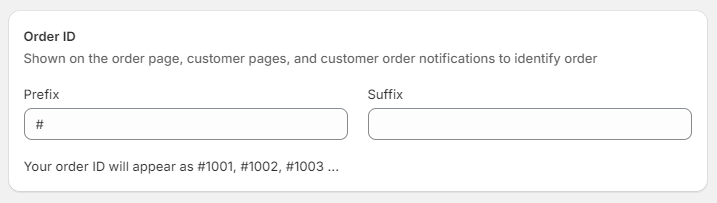
Technically, the inner part (i.e. the number, e.g. 1001) reflects the order number. Together with the prefix and suffix, the three parts make up the order name.
The customer-facing order name is typically visible on the order confirmation page, in order-related communication (e.g., order confirmation email) and on the order status page.
You can find this identifier in your order report in the Shopify admin panel.
In some cases, Shopify doesn’t generate the customer-facing order number at checkout, but at a later stage. Because of this, Awin reporting uses the Shopify internal order ID as the primary order reference.
From a technical perspective, the order name or order number is also not available everywhere on the Shopify platform. For example, the Pixels Manager, which consists of App Pixels and Custom Pixels and is compatible with Checkout Extensibility, doesn’t include the order number in its checkout events.
Internal order ID or checkout ID
The internal order ID or checkout ID is generated at an earlier stage - it relates to a shopping basket. It’s a long string of numbers, such as 12345678901234567890.
Awin uses the Shopify internal order ID as the primary order reference because it is the most reliable and consistent identifier for integrations and reconciliation. If available, the customer-facing order number (for example #1001) may still be captured in Custom Parameters to help match transactions with customer communications.
You can use internal order ID in the Shopify admin panel’s Search & Filter function to locate the order and match it to the customer-facing order number.

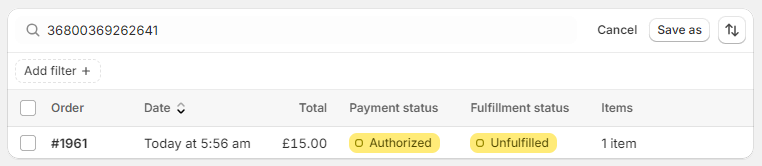
An alternative way to link the checkout ID to the order number is to export the list of orders to a CSV file. The CSV generated by Shopify contains both identifiers.
Matching the customer-facing order number with the order reference used in Awin reporting
Awin reporting uses the Shopify internal order ID as the order reference. If you need to match this with the customer-facing order number (for example #1001), you can do so in the following ways:
In Shopify admin: Use the internal order ID shown in Awin reporting in the Shopify admin panel’s Search & Filter function to locate the order and view its customer-facing order number. Alternatively, export the list of orders to a CSV file. The CSV generated by Shopify contains both identifiers.
Using Awin transactions report: You can export a transactions report from Awin to compare both references. Where captured, the report includes the Shopify internal order ID and the customer-facing order number in Custom Parameters.
To export the report, log in to the Awin platform and go to Reports > Transactions, apply your filters and generate the report, then open Options and choose Export as CSV or Export as Excel.